Previewing Your Cablecast CG Channel
Cablecast CG is the bulletin board side of the Cablecast software. Your Cablecast CG Channel plays out of a server output, so the easiest way to see it is on a preview monitor routed to that output. Depending on your hardware and configuration, Cablecast CG may share the same output as your video files, use a dedicated CG output on the server, or run on a standalone CG server. If you don't have a preview monitor available, Cablecast still gives you two ways to see what your channel looks like: a Web Preview that opens in your browser, and a live, real-time preview in Control Rooms.
Web Preview
The Web Preview shows what your Cablecast CG Channel looks like right in your web browser. It's the quickest way to check your work as you build a channel.
Opening the Web Preview
Go to Settings → Cablecast CG Settings → Channels. This lists all of the Cablecast CG Channels configured on your system.
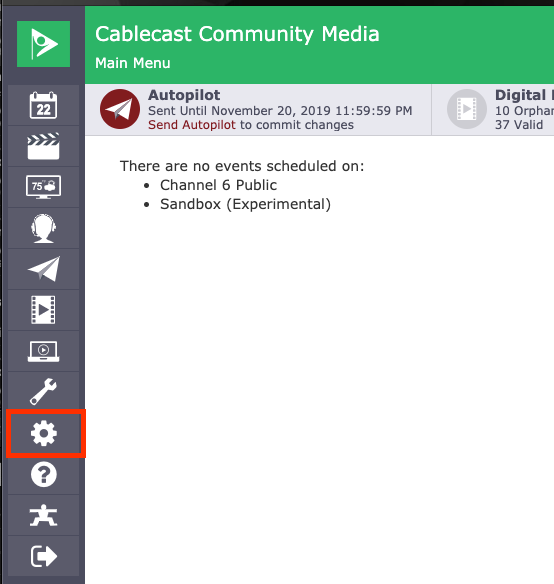
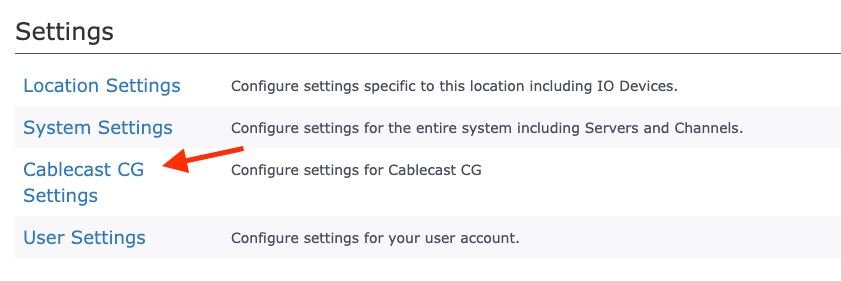
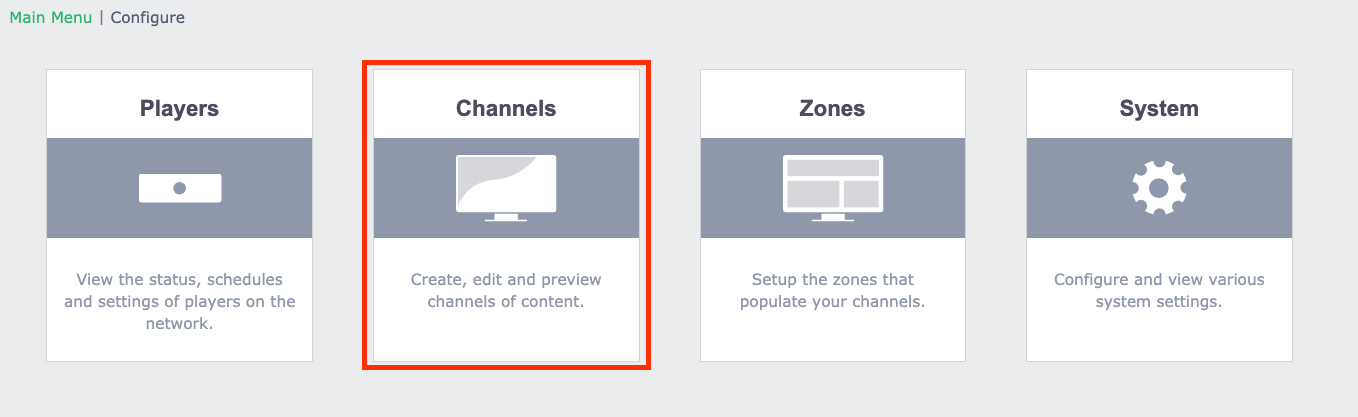
Find the channel you want to preview. On the right side of its row, select the Preview (eye) icon.
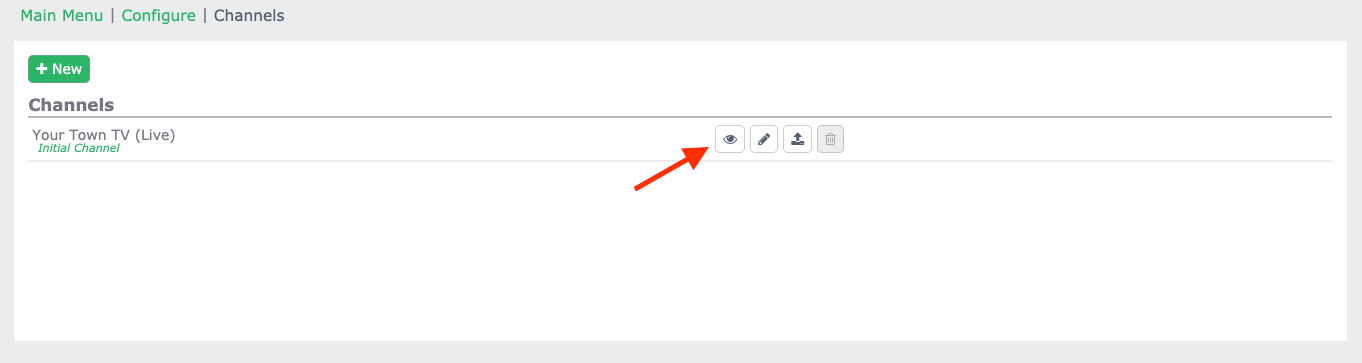
The preview opens in a new browser tab.
Note: Because the Web Preview opens in a browser window, it scales to the dimensions of that window rather than to the channel's true resolution. A Standard Definition channel viewed in a wide, 16:9 window will appear stretched, and a narrow window will fill differently. It's a representative preview, not an exact match for broadcast output.
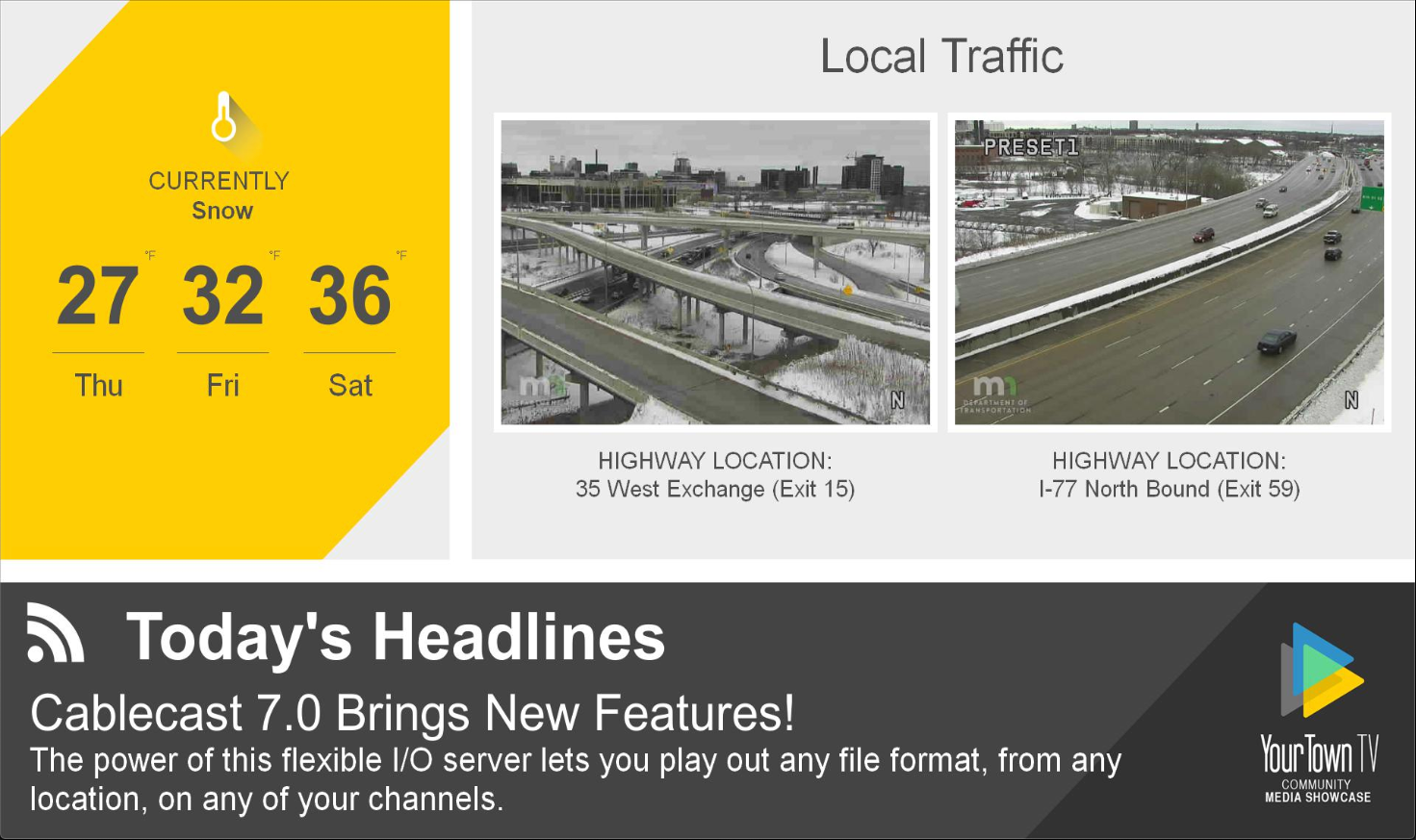

Note: The Web Preview does not render anything with motion, including video bulletins and crawls. To see those elements in action, use the Control Rooms preview below or view your channel as it plays out live.
Live Preview in Control Rooms
Control Rooms give you a live, real-time view of what's coming out of your server outputs, including your Crawl Bulletins and Video Bulletins, in the correct aspect ratio. This makes it the right choice when you need to confirm motion elements that the Web Preview can't show.
Opening Control Rooms
To open Control Rooms, select the gamepad icon in the left-hand menu. You can also go to Autopilot → Control Rooms.

If no Control Room is loaded, the view defaults to All Devices, which shows every device and output on your system.
Previewing your channel output
Each device listed on the left side of the Control Room shows a small thumbnail of what it's currently playing. To open a larger preview:
On the left side of the Control Room, find the device your Cablecast CG Channel plays out of.
Select the device name. A Current Status window opens with a larger preview of that device's output, along with its playback state and the output it's patched to.
The larger preview shows your bulletin board in real time, including its Crawl Bulletins and Video Bulletins, in the correct aspect ratio.

Note: This preview reflects whatever is currently using that server output. If a video is playing from the server at that moment, you'll see the video rather than your Cablecast CG bulletin board.
Note: The preview captures a still frame every few seconds rather than a continuous video feed, so motion looks jumpy, and there is no audio. To see your channel exactly as viewers do, with smooth motion and background audio, watch your channel output directly.
Summary
When you don't have a preview monitor handy, Cablecast gives you two ways to check your Cablecast CG Channel. The Web Preview is fastest for confirming layout and static content in your browser, though it scales to your window and won't show motion. The Control Rooms preview shows a live, real-time view in the correct aspect ratio, including crawls and video bulletins, making it the better option when you need to verify motion elements. For the most accurate picture of what viewers see, watch your channel output directly.
