Using the Caption Editor in MediaScribe
After a recording is complete, MediaScribe automatically creates captions using AI-powered speech recognition. The Caption Editor lets you review and correct those captions before saving.
Opening the Caption Editor
From the MediaScribe dashboard, navigate to Assets.
Select the recording you want to edit.
On the asset detail page, click Edit Captions.

The Caption Editor opens with a video player on the left and a caption list on the right.
Caption Editor Overview

The Caption Editor is divided into two main areas:
Video player — Plays back the recording. The current caption segment is highlighted in both the caption list and the timeline strip at the bottom of the screen as the video plays.
Caption list — Displays each numbered caption segment with its text, start and end timestamps, and readability statistics. These include words per minute, characters per second, duration, word count, and character count.
A scrollable timeline strip at the bottom of the screen shows all caption segments. You can click any segment in the list or timeline to jump to that point in the video.
The header displays Save Work and Cancel buttons. Changes are not saved until you click Save Work.
Editing Caption Text
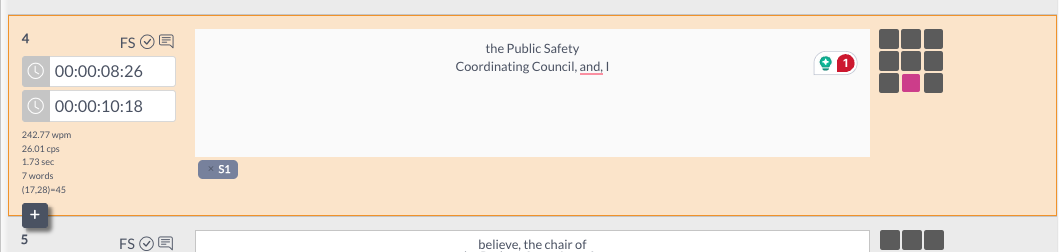
Click a caption segment in the list to select it.
Click into the text area on the right side of the segment and make your corrections.
Click Save Work in the header when you are ready to save your changes.
Note
AI-generated captions are generally accurate but may require corrections for proper nouns, technical terms, or names specific to your organization.
Adjusting Timestamps

Each caption segment displays a start time and end time field. To adjust timing:
Click the timestamp field you want to change.
Enter the corrected time in
HH:MM:SS:FFformat.Play back that section of the video to confirm the timing is correct.
The readability statistics (wpm, cps, duration) update automatically to reflect any timing changes.
Adding a Caption Segment

To insert a new caption segment between two existing segments, click the + button that appears between segments in the caption list.
Search and Replace

The Search & Replace tab in the lower-left panel lets you find and correct repeated errors across all caption segments at once.
Select the Search & Replace tab.
Enter the text you want to find in the Search field.
Enter the replacement text in the Replace field.
Use the available options to refine your search:
Case Sensitive — Matches exact capitalization.
Whole Word — Matches only complete words.
Replace All — Replaces every instance at once.
Regex — Enables regular expression matching. Regular expressions are text patterns that let you search for complex or variable text. For example, you could use a pattern to find all versions of a misspelled word at once.
Click Search to locate matches, then use the arrow buttons to step through results, or click Replace to apply the replacement.
Managing Speakers

The Speakers tab in the lower-left panel displays the speakers identified in the recording. Each speaker is assigned a color that appears as a tag on their caption segments in the list.
To manage speakers, click the Speakers tab.

From there you can open the Speaker Manager to:
Add a new speaker by entering a name and selecting a color, then clicking Add Speaker.
Edit an existing speaker's name or color using the edit icon.
Delete a speaker using the delete icon.
Speaker labels appear as colored tags (for example, S1, S2) on each caption segment.

Right-Click Context Menu

Right-clicking a caption segment opens a context menu with the following options:
Option | Description |
|---|---|
Cut | Cuts the selected content. |
Copy | Copies the selected content. |
Copy Text | Copies the caption text only, without any formatting attributes. |
Paste | Pastes previously cut or copied content. |
Paste Attributes | Pastes formatting attributes without changing the text. |
Delete | Deletes the caption segment. |
Select All | Selects all caption segments. |
Auto Format Text | Applies standard text formatting to the segment. |
Clean Up Text | Removes extra spaces, line breaks, or other formatting issues from the text. |
Calculate Timing by CPS | Recalculates the segment's end time based on the target characters-per-second rate. |
Merge | Combines the selected segment with the segment next to it. |
Forced Subtitle | Marks the segment as a forced subtitle, which displays even when captions are turned off. |
Approve | Marks the segment as approved. |
Fail | Flags the segment as failed for follow-up review. |
Menu Options
The Caption Editor includes four menus in the top navigation bar: Edit, Format, Timecode, and Insert.

Format Menu
The Format menu contains options for styling caption text and managing how segments are laid out.
Text Formatting
Bold — Applies bold formatting to selected text.
Underline — Applies underline formatting to selected text.
Italics — Applies italic formatting to selected text.
Clear Formatting — Removes all formatting from selected text.
Event Formatting
Auto Format Custom — Applies a custom formatting rule to the selected segment.
Snap to Event Start — Moves the segment's start time to the nearest event boundary.
Snap to Event End — Moves the segment's end time to the nearest event boundary.
Fix Event Overlap — Fixes timing overlaps between segments.
Order Events by Time — Sorts all segments by start time, from first to last.
Offset Position — Moves the selected segment forward or backward by a set amount.
Caption Style — Opens caption style settings for the segment.
Text Submenu
Spell #1..10 — Spells out numbers as words.
Remove Repeat Words — Removes words that appear twice in a row.
Replace ..+ with Ellipses — Replaces multiple periods with a proper ellipsis character.
Split on Dash — Splits a segment into two at a dash character.
Fix RTL Text — Corrects formatting for right-to-left text.
Reverse RTL Start and End — Reverses the start and end positions of right-to-left text.
Text to Upper Case — Converts selected text to uppercase.
Text to Lower Case — Converts selected text to lowercase.
Text to Title Case — Converts selected text to title case.
Text to Sentence Case — Converts selected text to sentence case.
Timecode Menu
The Timecode menu contains options for managing timecode settings and timing adjustments.
Project Settings — Opens project-level settings.
Convert Timecode — Converts timecodes between formats.
Timecode Offset — Shifts all timecodes in the project by a set amount.
Stretch/Shrink — Stretches or shrinks the timing of all segments.
Auto Correct Reading Speed — Adjusts segment timing to meet a target reading speed.
Copy TC From Group — Copies timecode values from a group.
Clear Timecodes — Removes all timecodes from the project.
Insert Menu
The Insert menu contains options for adding new elements to the caption track.
Event Before — Inserts a new caption segment before the selected segment.
Event After — Inserts a new caption segment after the selected segment.
(■) Full Block — Inserts a full block character.
(…) Ellipsis — Inserts an ellipsis character.
(♪) Music Notes — Inserts a music note character.
Speaker Name — Inserts a speaker name into the selected segment.
Blank Frames — Inserts blank frames at the selected position.
Saving and Exiting

Click Save Work in the upper-right corner to save your changes. To exit without saving, click Cancel.
