User Accounts and Roles in Cablecast and CablecastCG
User accounts and roles let you control who can access different areas of Cablecast and Cablecast CG. This article walks you through creating accounts, configuring roles, and assigning them to users.
It is recommended that individual user accounts be created for both security purposes and for troubleshooting certain issues within Cablecast.
Note
The default admin account that is created with all new Cablecast systems has all rights for FrontDoor, Cablecast, and Cablecast CG.
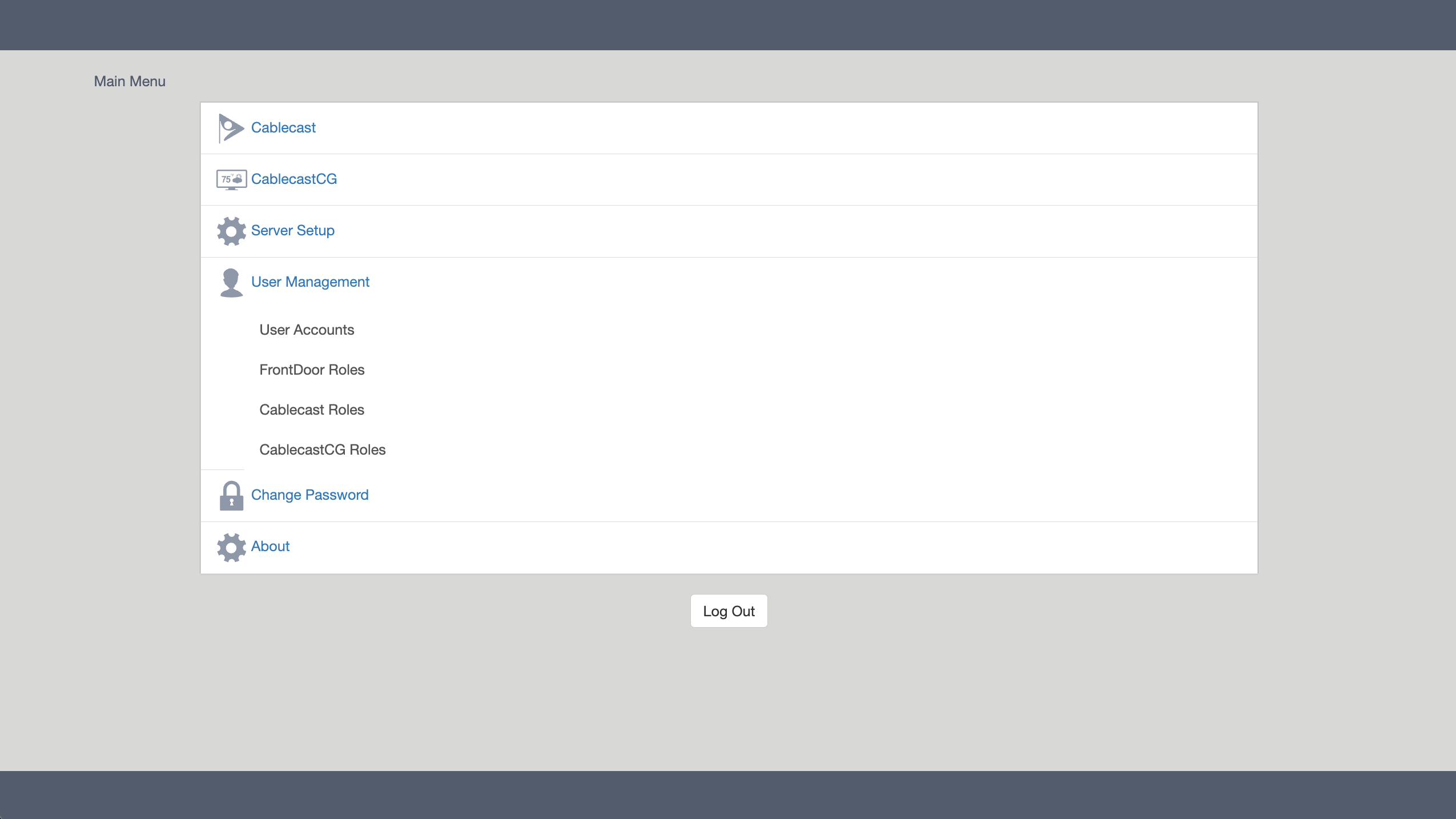
To create and manage user accounts, you will need to have administrator-level privileges for the account you're using to log into Cablecast. Once logged into FrontDoor, click the User Management menu item. If you don't see the User Management menu option, it's likely that your account does not have the appropriate permissions to access this area of FrontDoor.
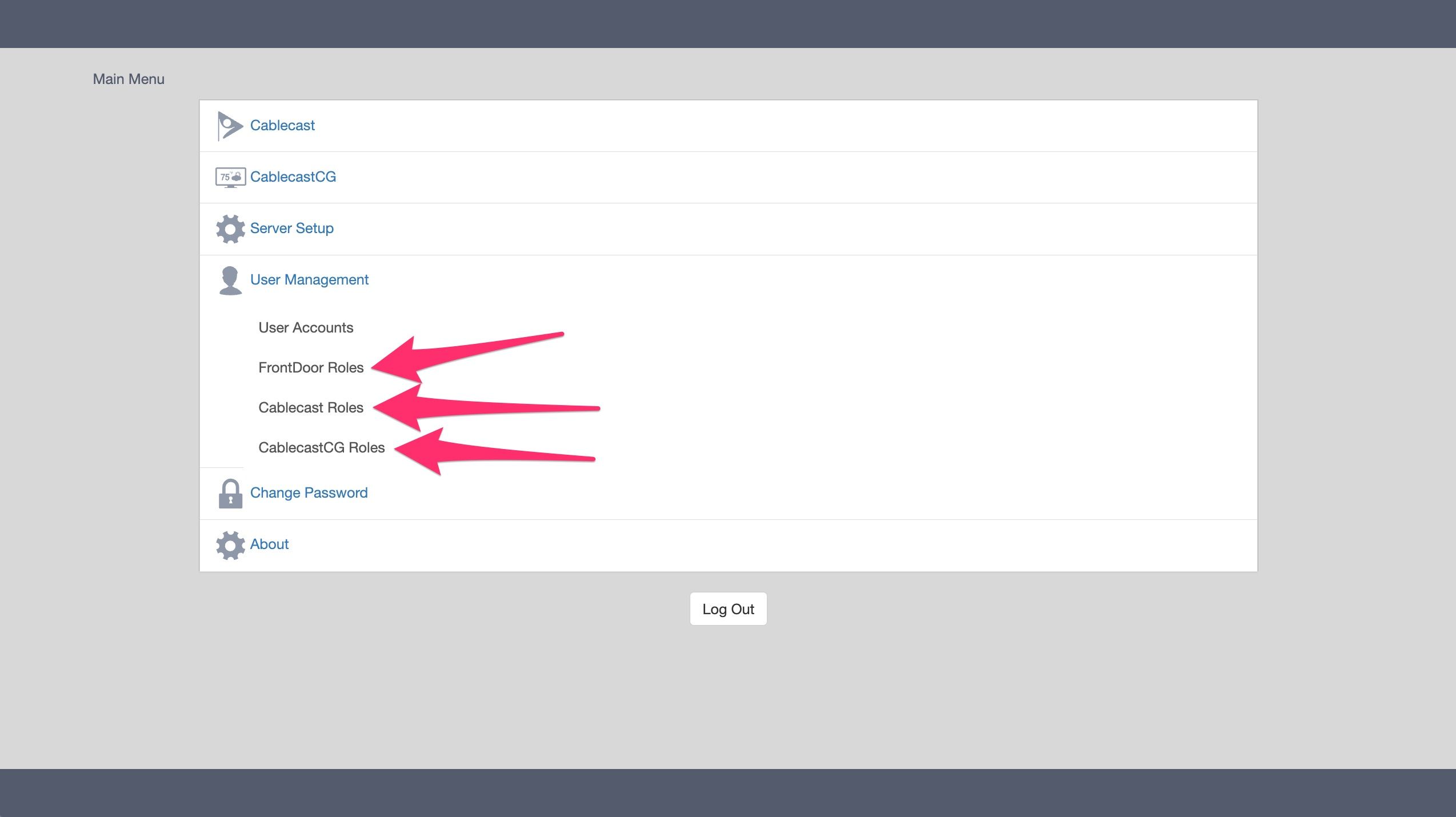
Here you have sub-menus for User Accounts, FrontDoor Roles, Cablecast Roles, and Cablecast CG Roles.
User Accounts
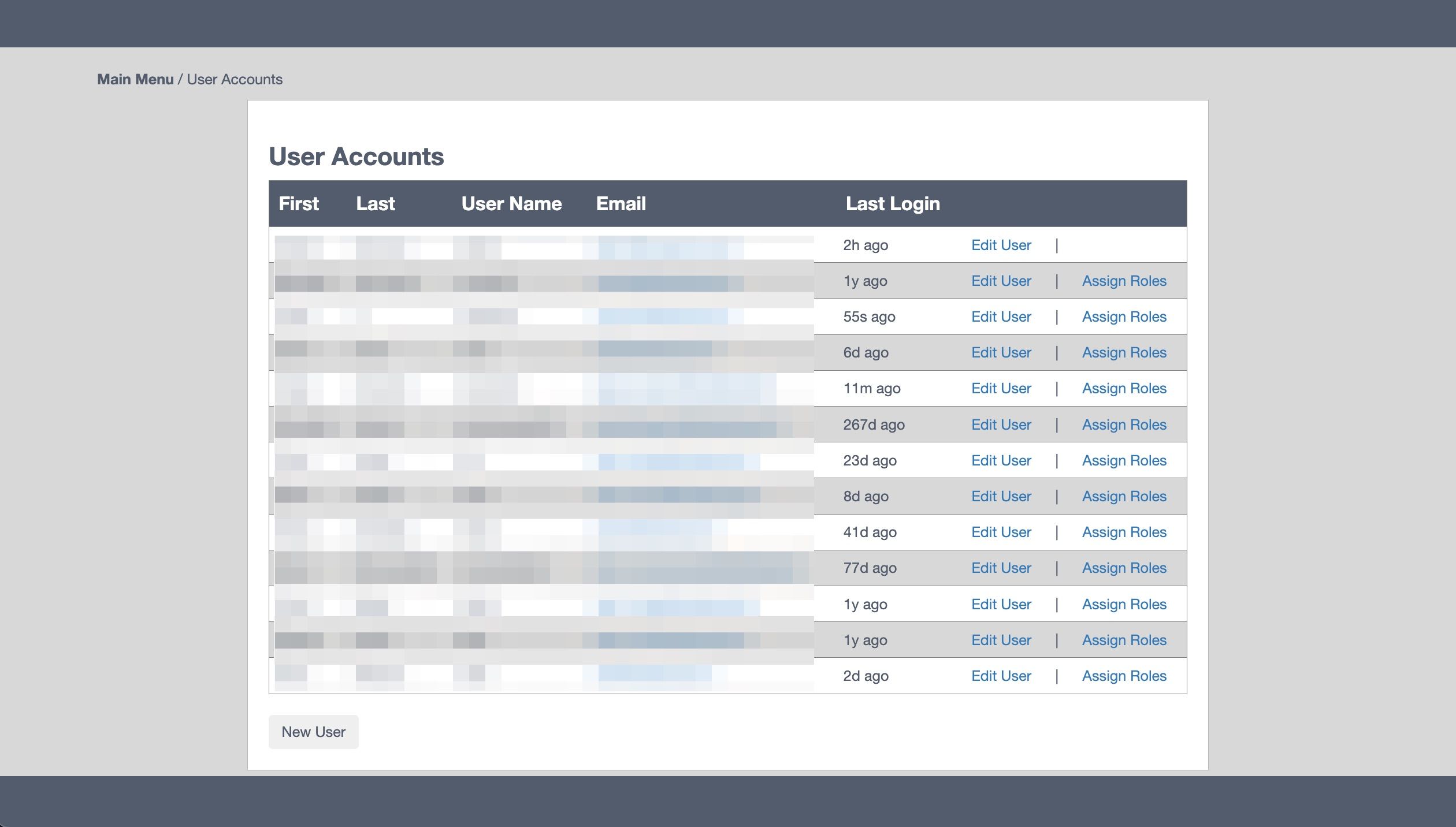
Here, you'll see a list of existing user accounts. The list shows the first name, last name, email address, and last login for each user.
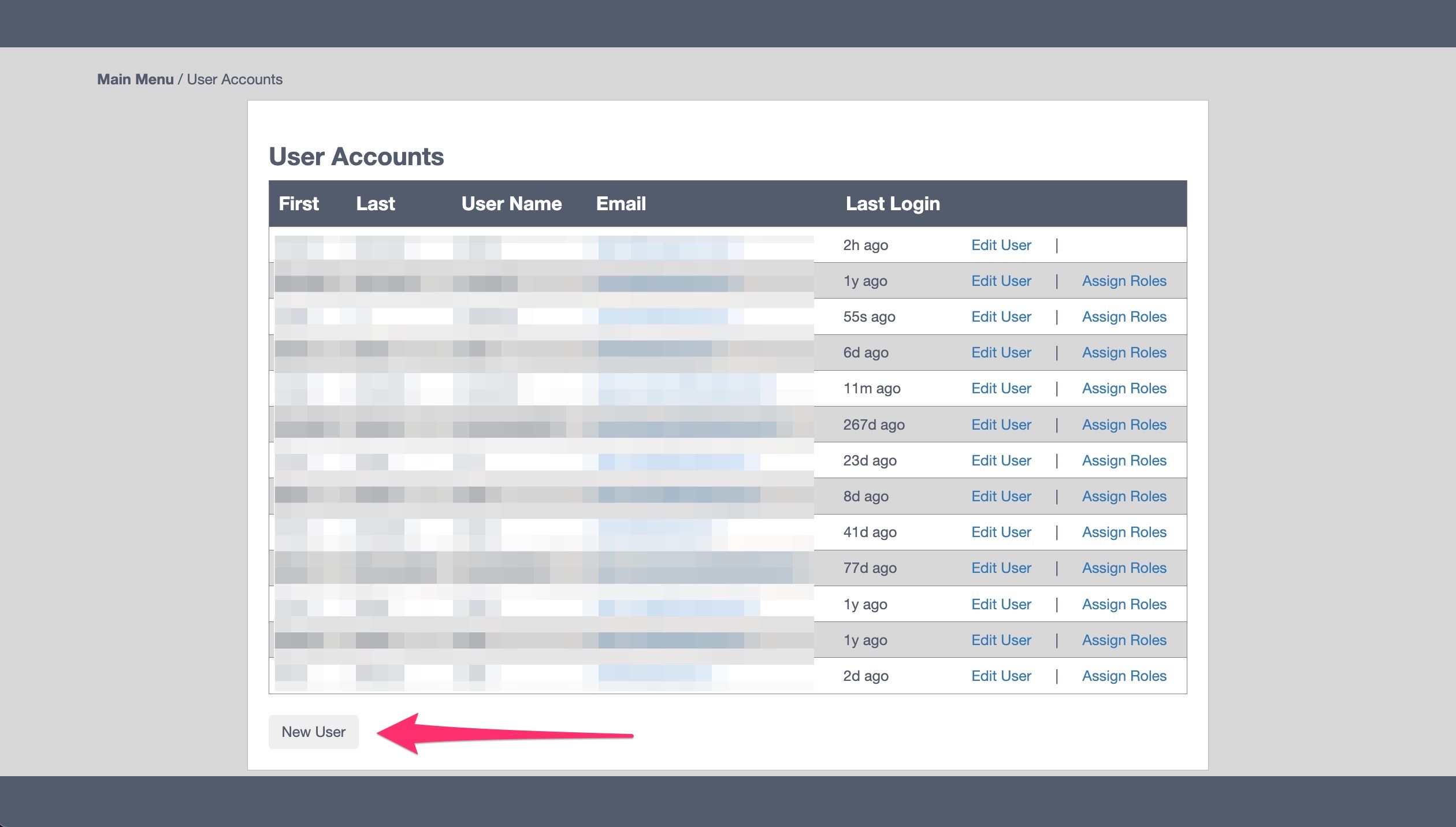
To make a new user, click the New User button at the bottom of the page.
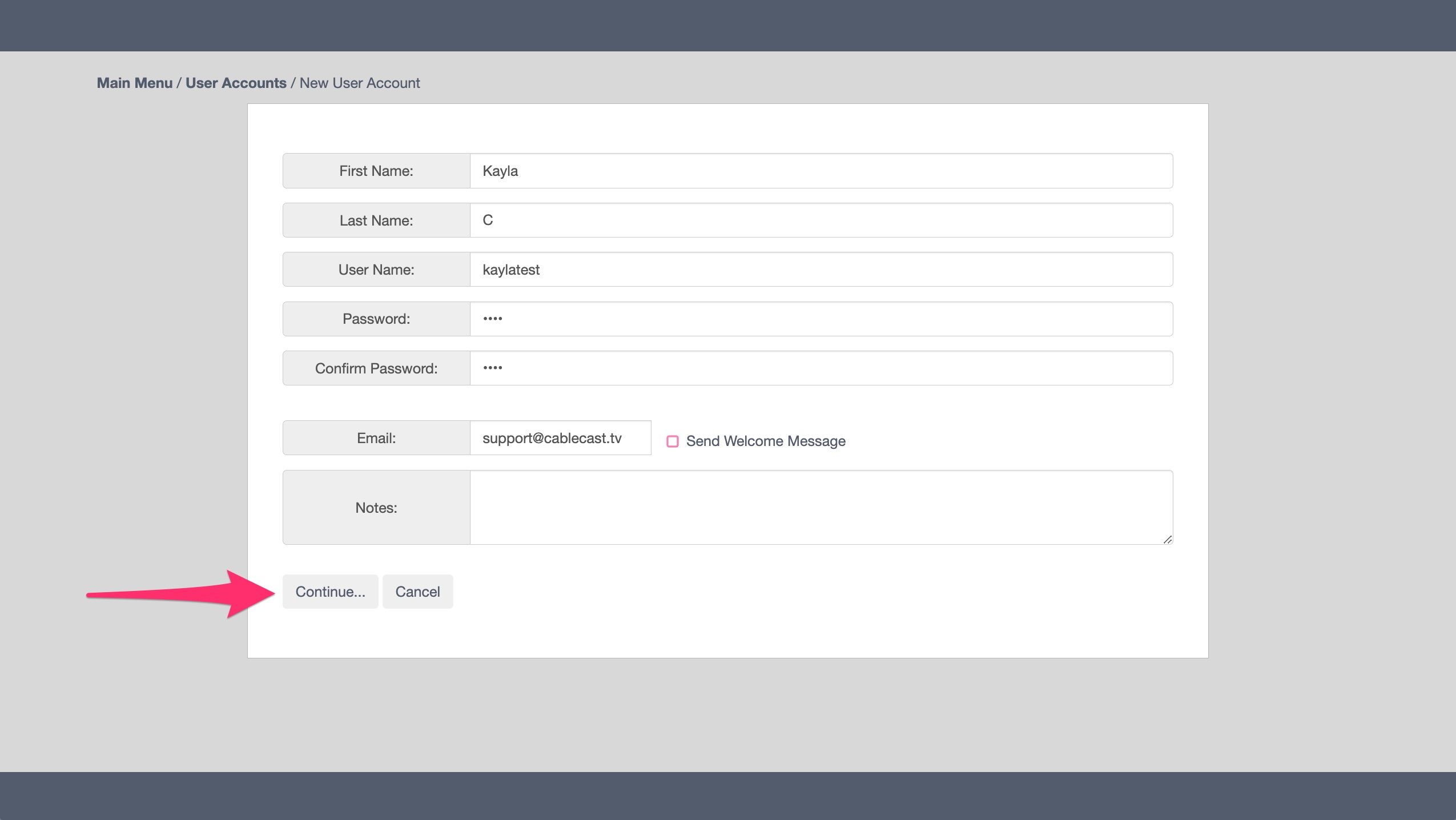
Here, you'll be prompted to enter some basic information for the user, including their first name, last name, the desired username, a password for the user, and the user's email address.
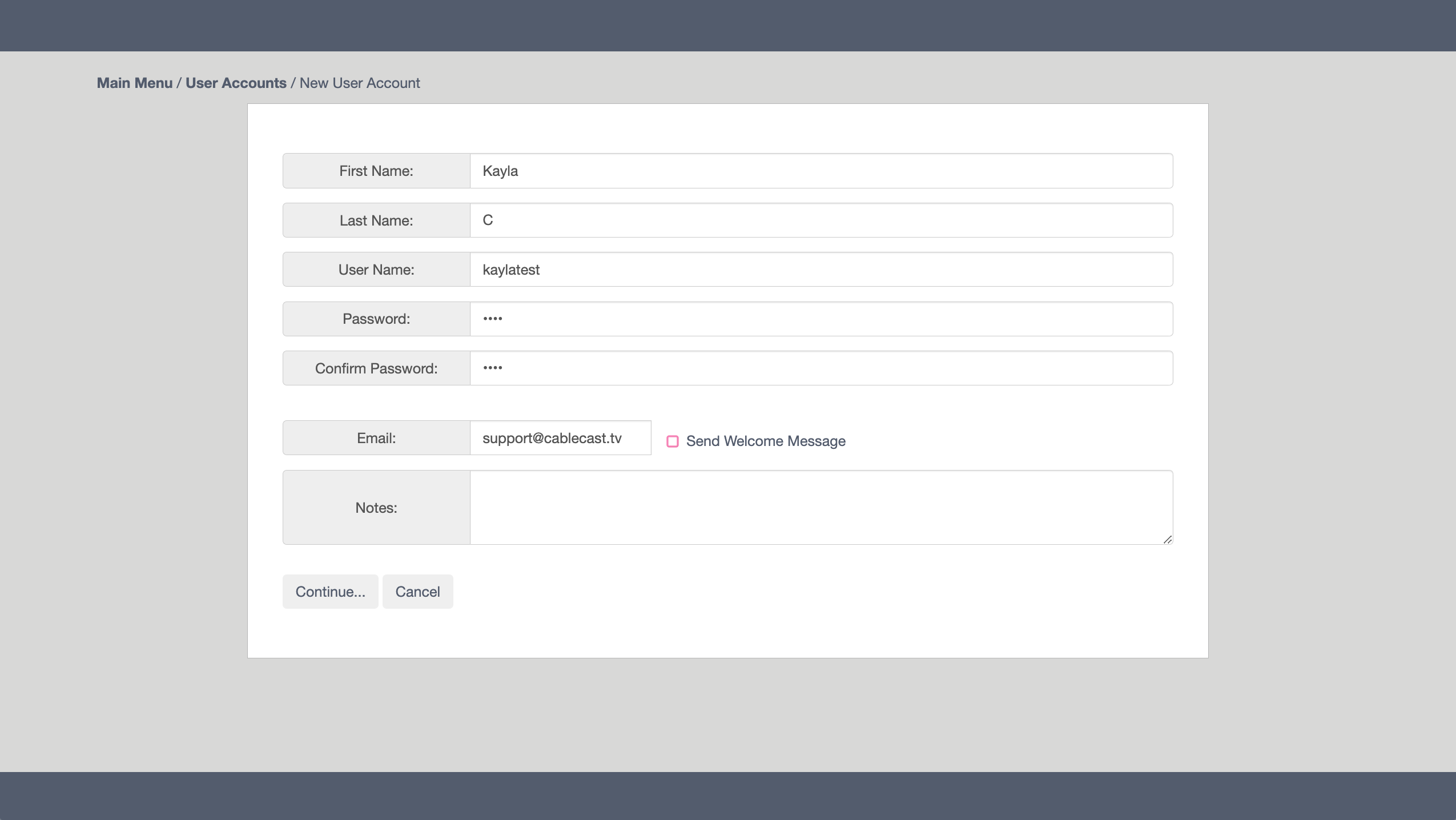
You can create a temporary password to start. The user will have the option to change their password when they log in, regardless of what permissions you give them for FrontDoor.
When entering the email address, if you have not configured a mail server in Cablecast, deselect the Send Welcome Message checkbox. Leaving that checked without a mail server configured will result in an error message. If you wish to configure a mail server, be sure to check out our KB article on setting up a mail server with Cablecast: Configure FrontDoor to use Gmail server
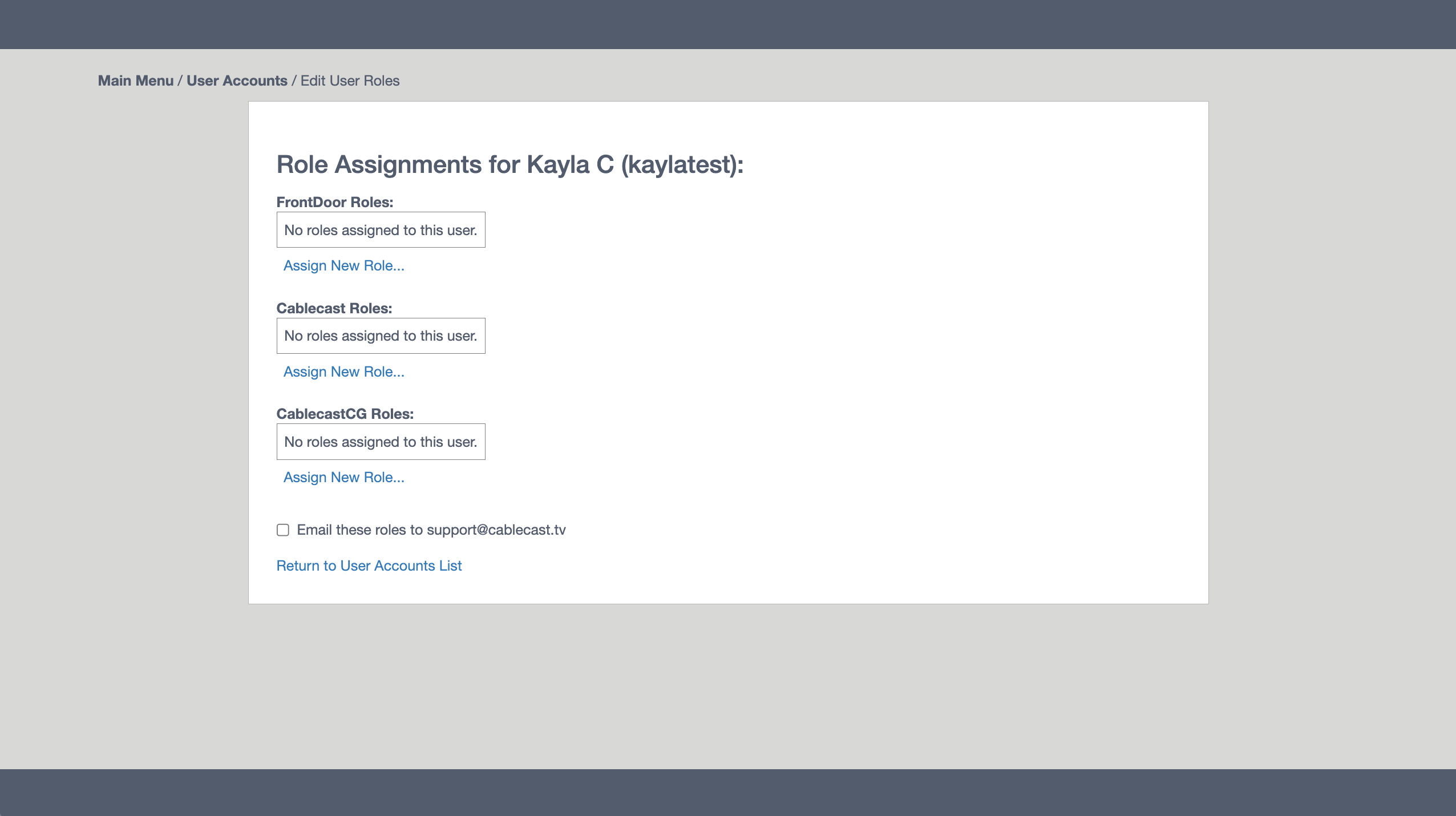
Once you've entered the information for the new user, click Continue… to be taken to the Role Assignments page for that user.
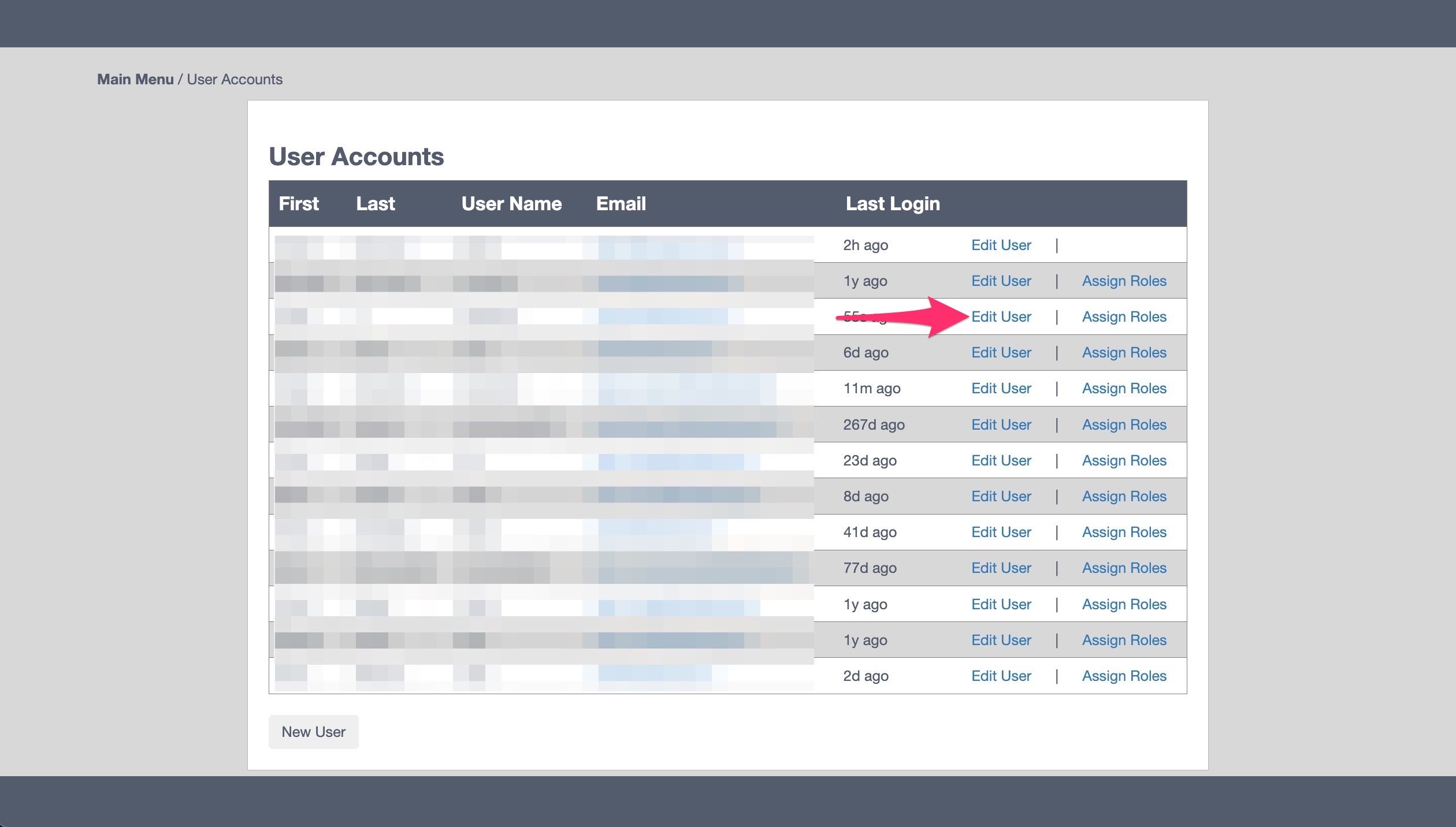
If you need to make changes to an existing user account, click Edit User to the right of the user.
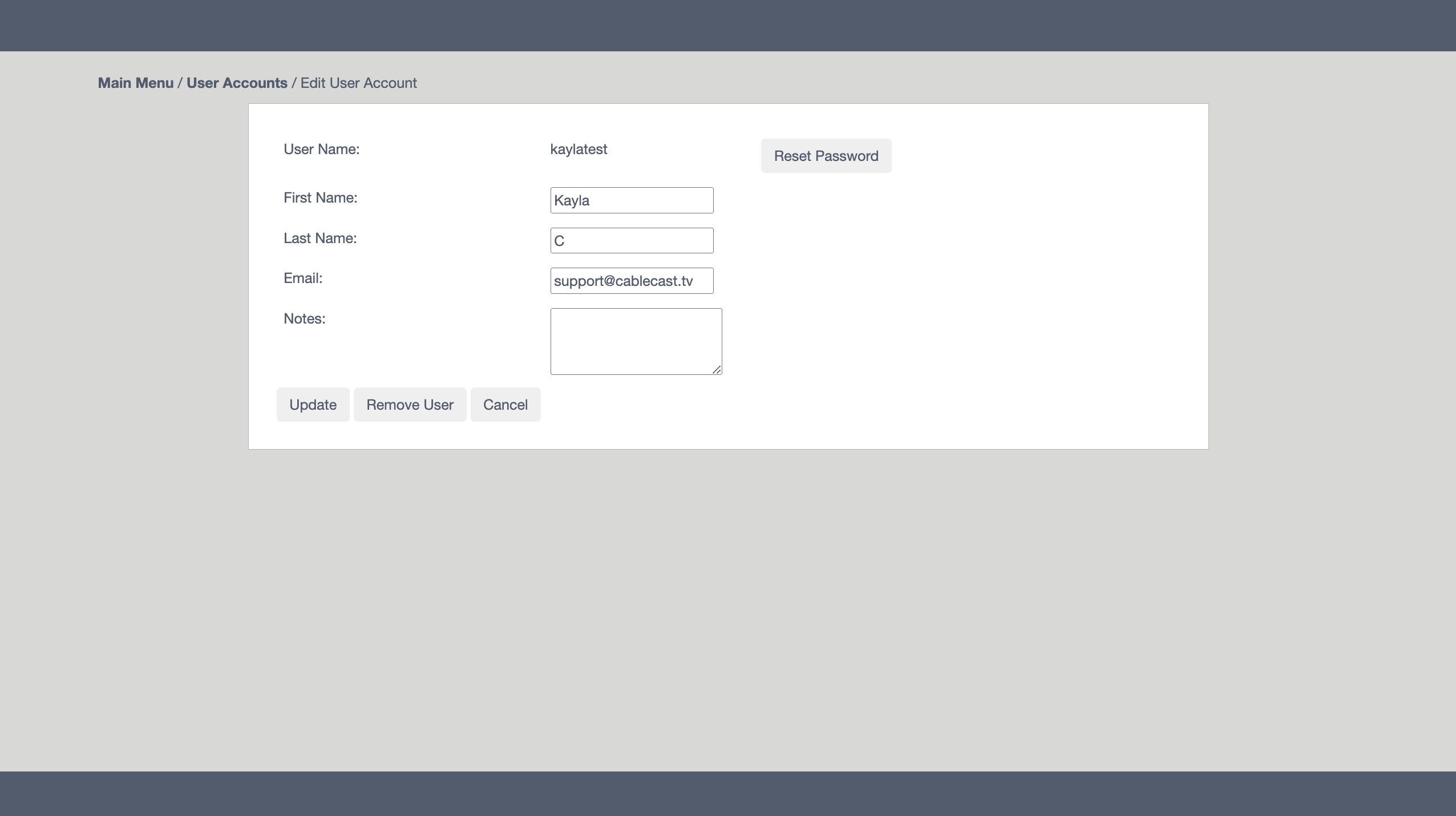
On the Edit User page, you can reset the password if the user has forgotten it. You can change their first name, last name, or email address, and can also make notes about that user. If you make changes on this page, be sure to click the Update button when you are done to save the changes. This is also where you would remove a user if they no longer need access to Cablecast or Cablecast CG.
Note: Once you've created a user, you cannot edit the username. If you need to change the username, you'll need to delete the user account and recreate the user with the new username.
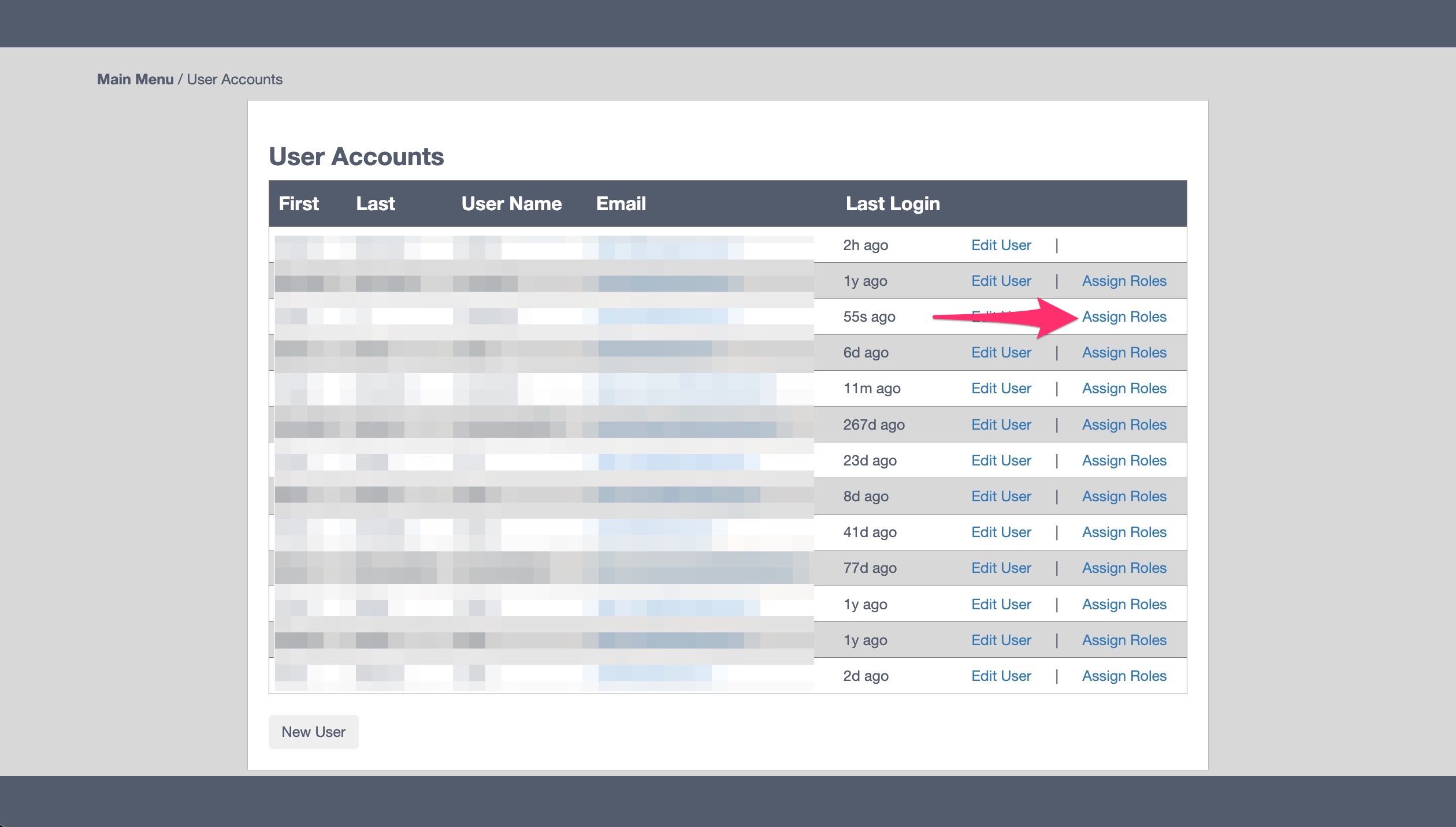
From the User Accounts list, you can also assign roles to users by clicking the Assign Roles link to the far right of the username.
The Role Assignments page is where you'll assign the roles you want that user to have within certain areas of the user interface (UI). There are three categories here: FrontDoor Roles, Cablecast Roles, and Cablecast CG Roles.
Now let's take a look at the various permissions within each role. To access the Roles, go to User Management in the left-hand navigation menu.
When you click into a role, you'll see the configured roles for that area of Cablecast. Cablecast ships with several pre-configured roles for each area of the system, but you can edit, remove, or create new roles as needed.
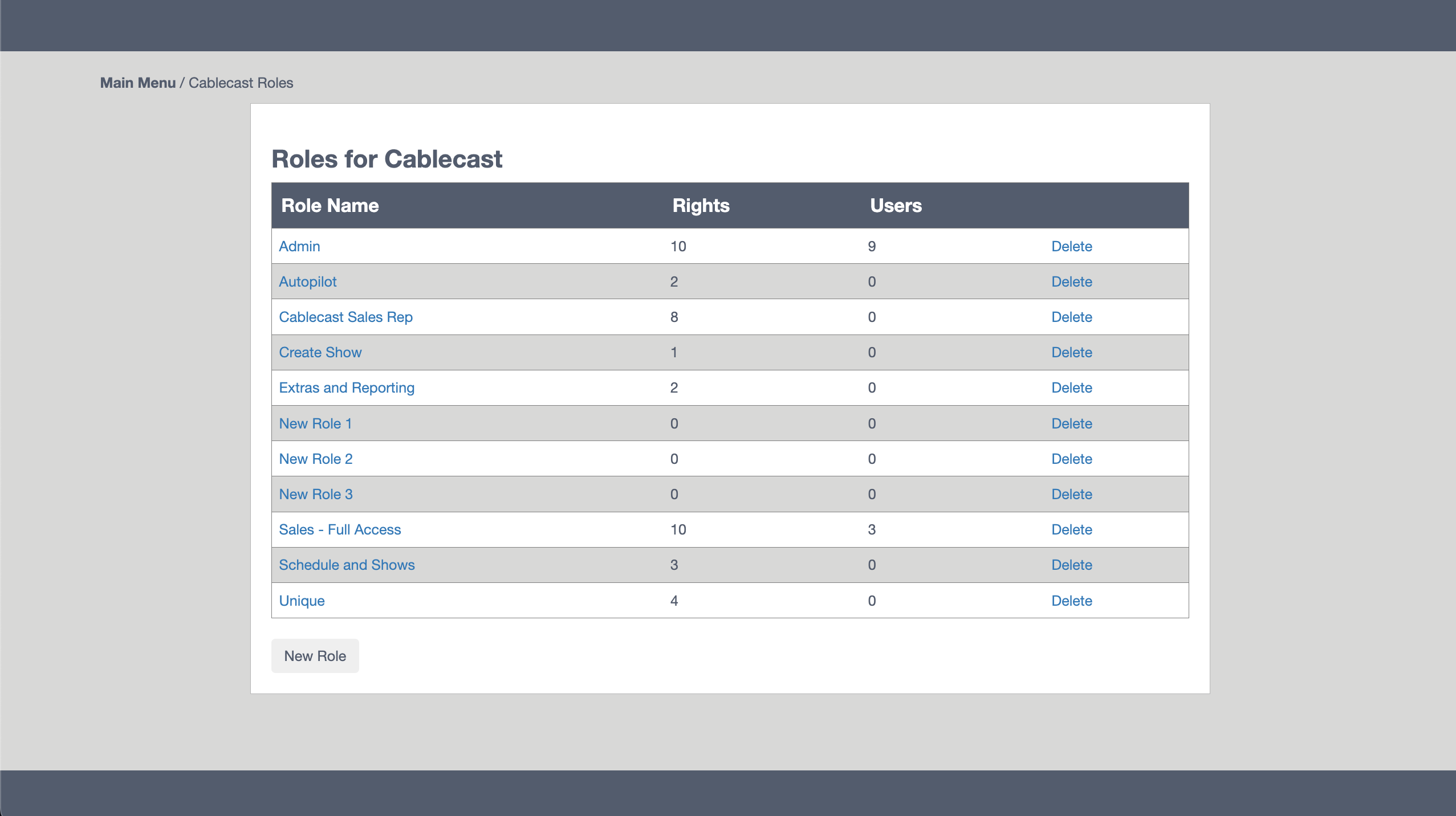
There will be a list of role names, the number of rights assigned to that role, and the number of users who have been assigned that role. If you click on an existing role name, that will take you to the configuration page for that role, where you can edit the role name, see the users who have been assigned that role, and the access rights that role has. If you make changes to the role, be sure to click the Update button at the bottom of the page to save those changes.
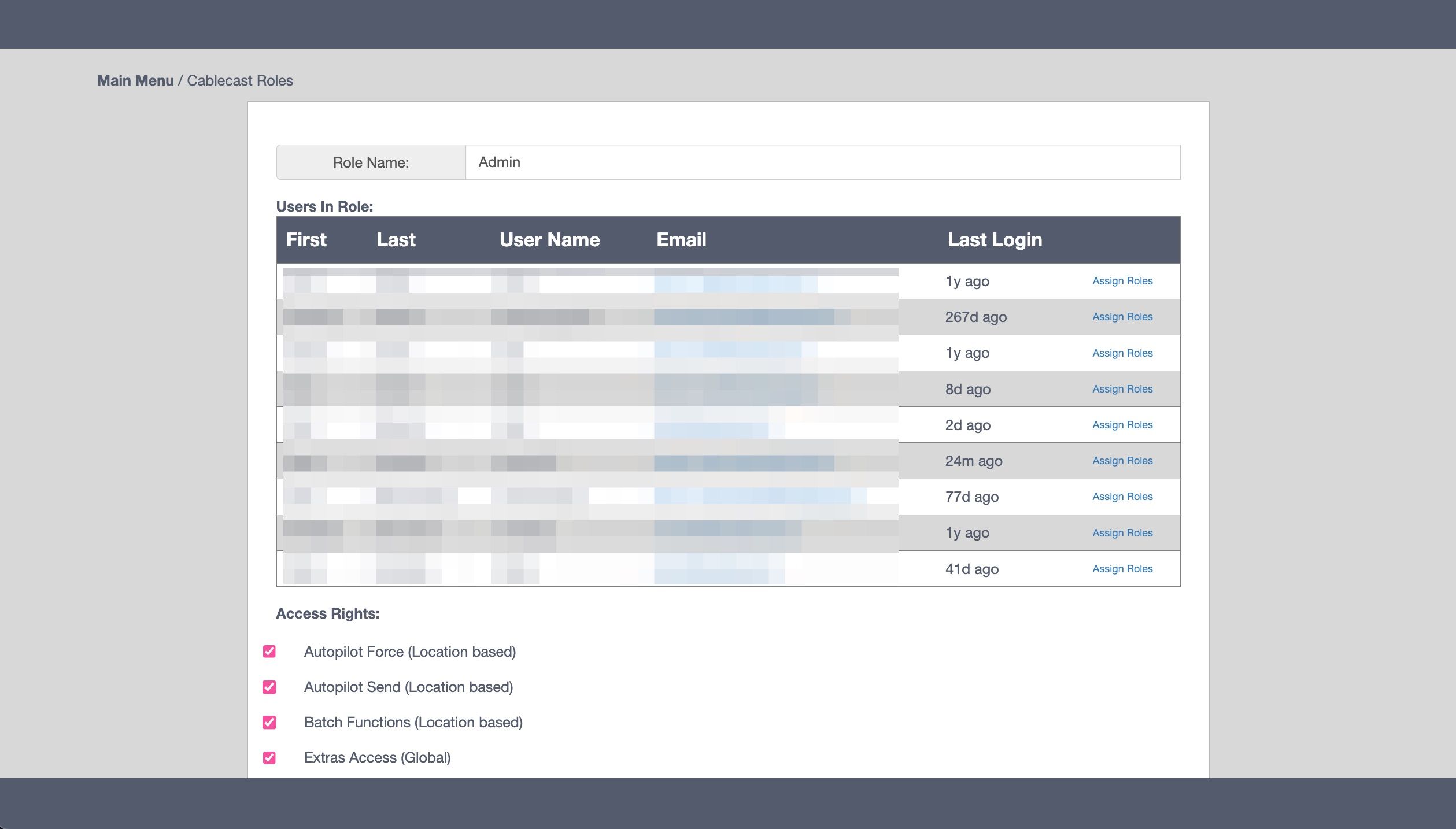
Note: The Admin right for each role gives all of the rights for that role outlined below.
FrontDoor Roles
FrontDoor has the following rights available:
FrontDoor Server Setup
User Management
FrontDoor Server Setup is this area within FrontDoor:
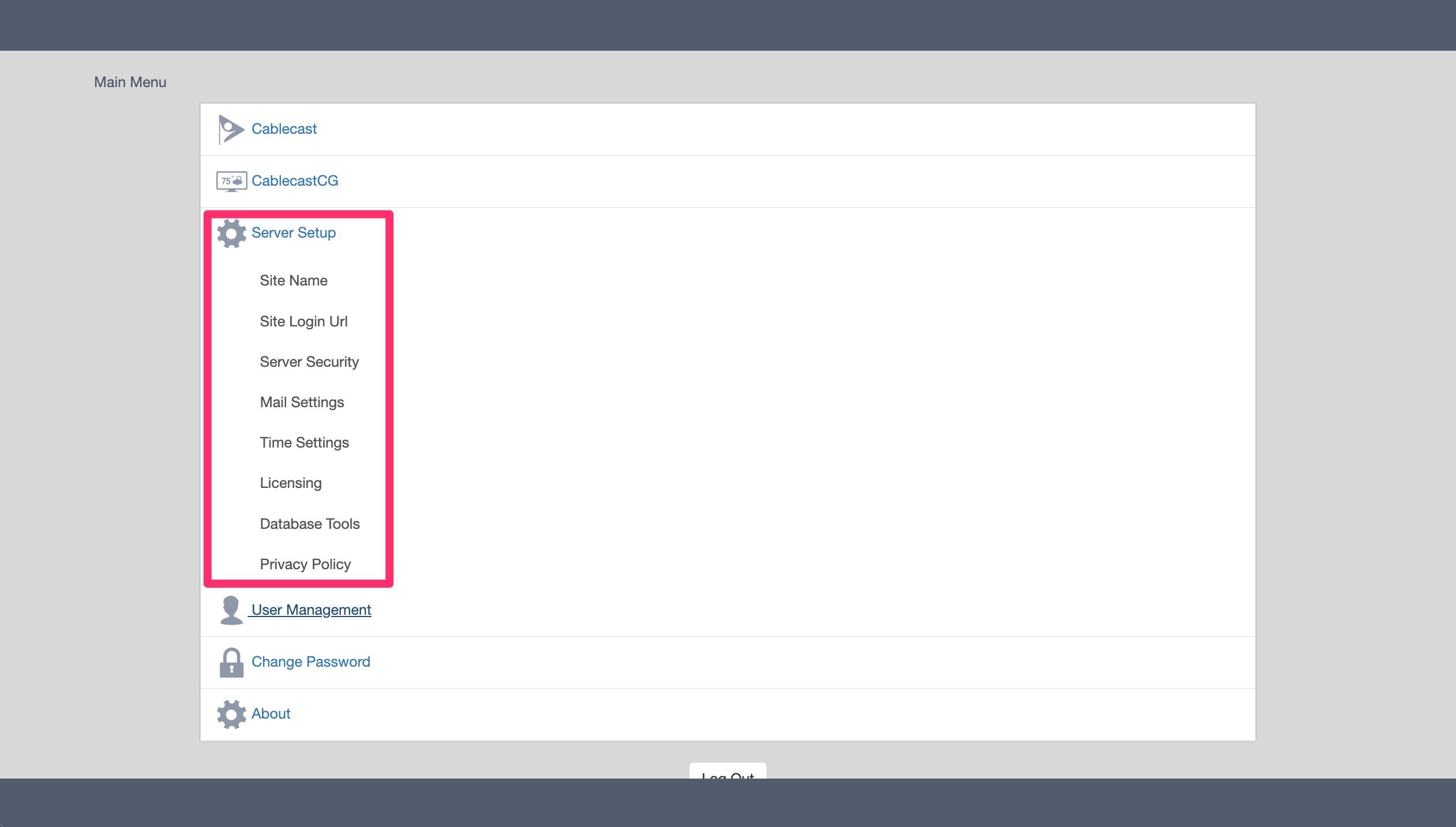
The Admin role for FrontDoor gives users access to all menu items within FrontDoor, Server Setup only allows them access to the Server Setup menu items, and User Management only allows access to create and manage other users.
If you don't want a user to be able to create other users or make system changes within FrontDoor, you don't need to assign any FrontDoor roles to that user.
Cablecast Roles
Cablecast has the following rights available:
Autopilot Force (Location based)
Autopilot Send (Location based)
Batch Functions (Location based)
Extras Access (Global)
Modify Schedule (Location or Channel based)
Modify Crawl Schedule (Location or Channel based)
Modify Shows (Location based)
Reporting Access (Global)
Modify Location Settings (Location based)
Modify System Settings (Global)
Location based means that the role gets assigned to all items within that location. Some customers — usually those with larger systems spread out across multiple locations — have different servers and channels assigned to different locations. For most customers, Location based will mean the entire system (all channels within a system) versus individual channel-based assignments.
Location or Channel based means you can limit the right by channel when assigning the role to a user. For example, you could allow a user to modify the schedule on a specific channel only, rather than giving them access to all channels on the system.
Global means the user has access to that area of the system regardless of whether it's Channel or Location based. Modify System Settings, for example, is a Global right that grants access to all System Settings in Cablecast - where servers are configured, input/output (I/O) settings are managed, and other system-level configuration is done. Use caution when assigning roles with this right, as incorrect changes in that area can cause significant issues.
Cablecast CG Roles
Cablecast CG has the following rights available:
Create - Alert Bulletins
Auto Approve Bulletins
Create - Set Extra Bulletin Properties
Create - Dynamic Bulletins
Create - Interactive Bulletins
Create - Repeating Bulletins
Create - Template Bulletins
Create - Uploaded Bulletins
Manage - Zone Bulletins
Manage - Approve Bulletins
Manage - Manage Zone Media and Templates
Templates - Create and Edit Templates
Setup - Global System Configuration
Setup - Zone Setup
Create rights allow users to create those particular types of bulletins. Manage rights allow users to moderate bulletins within particular zones or approve bulletins for other users who don't have Auto Approve Bulletin rights. Setup rights allow users access to the Cablecast CG configuration settings. Much like the Modify System Settings right in Cablecast, you want to be cautious about only giving this access to users who have a need to access the Cablecast CG configuration, as making changes in that area can cause significant issues with Cablecast CG if not done correctly.
Note: Cablecast CG roles can be applied by zone or to all zones within Cablecast CG. For example, if you're using one of the Cablecast CG multizone templates and you want your City Clerk to be able to upload bulletins to the Video Zone without needing approval from someone with a higher level of permission, you could give them the pre-created Bulletin Creation role for the Video Zone and the Auto Approve Bulletins role.
Assigning Roles to Users
Now that you know what the options are for each role and right, you should have a better idea of what role to assign to your users. As mentioned above, you can assign many of the roles in Cablecast by location or channel, and many of the roles in Cablecast CG by zone or to all zones. Let's take a closer look at these options.
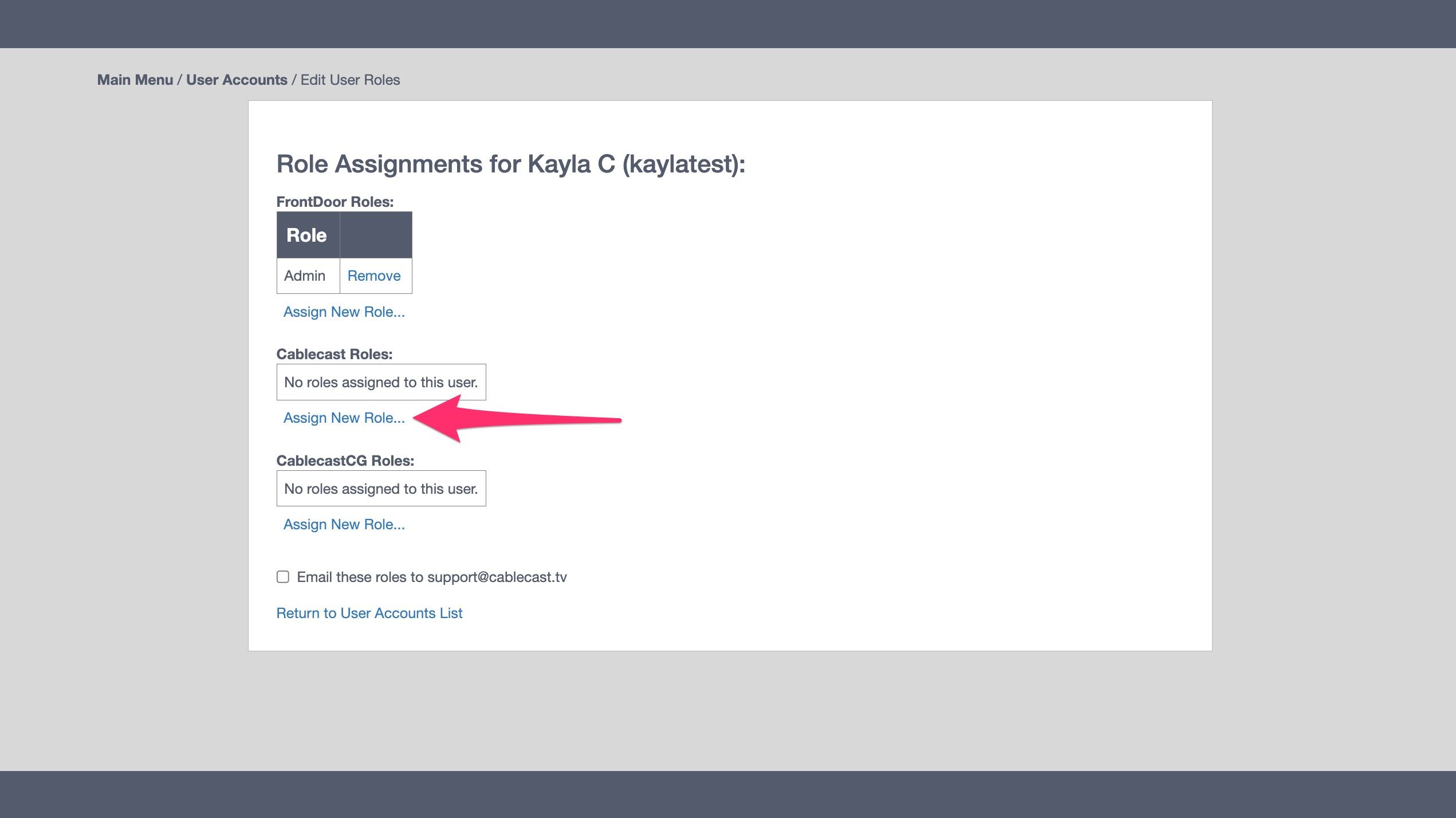
When assigning a Cablecast role, first click Assign New Role…
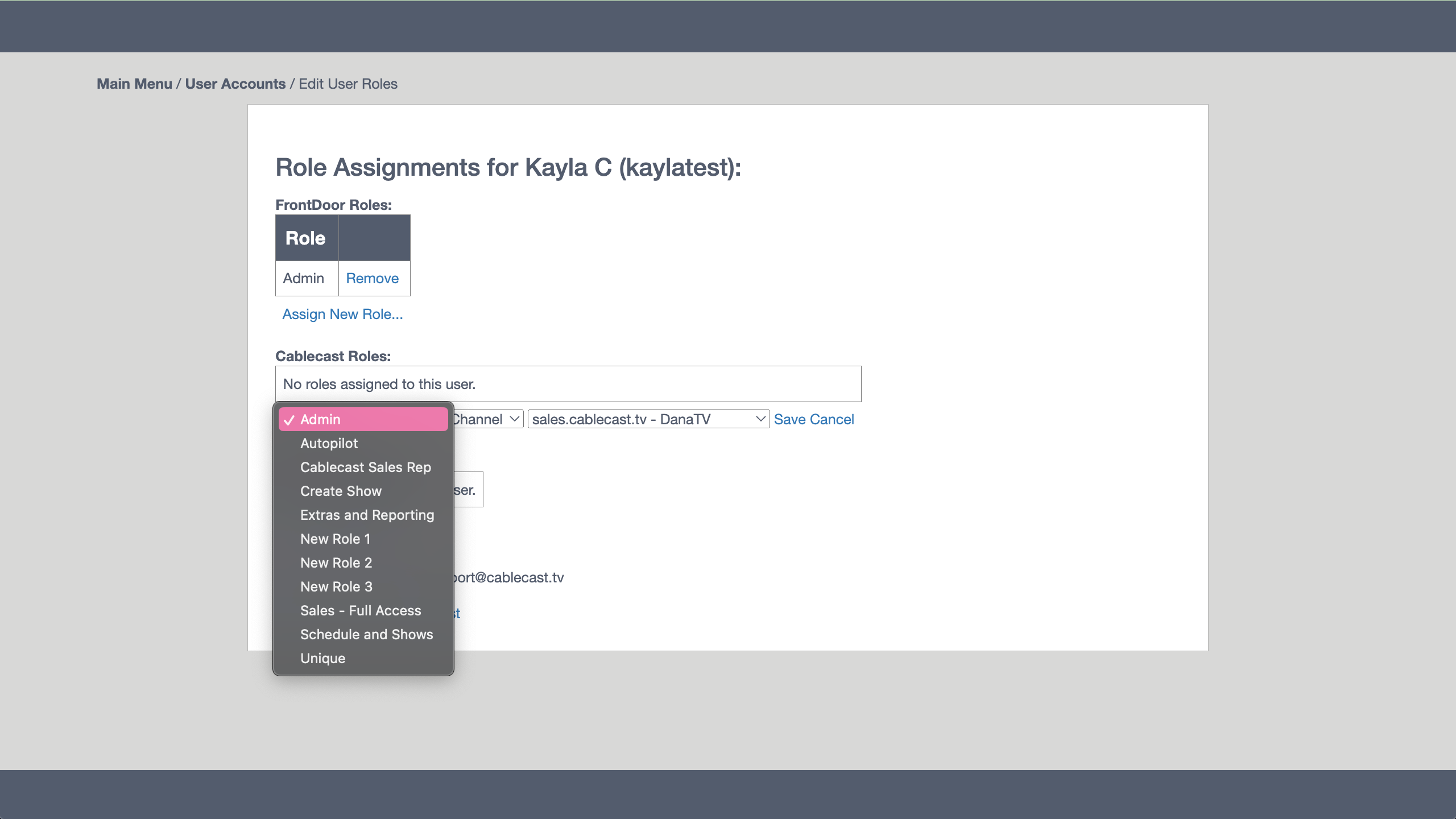
Next, choose the role you want to assign from the Role drop-down.
Next, choose whether you want to assign the role on a Channel basis or for all Channels (Location). If the second drop-down has Channel selected, you'll choose which channel you want the user to have those role assignments for in the third drop-down.
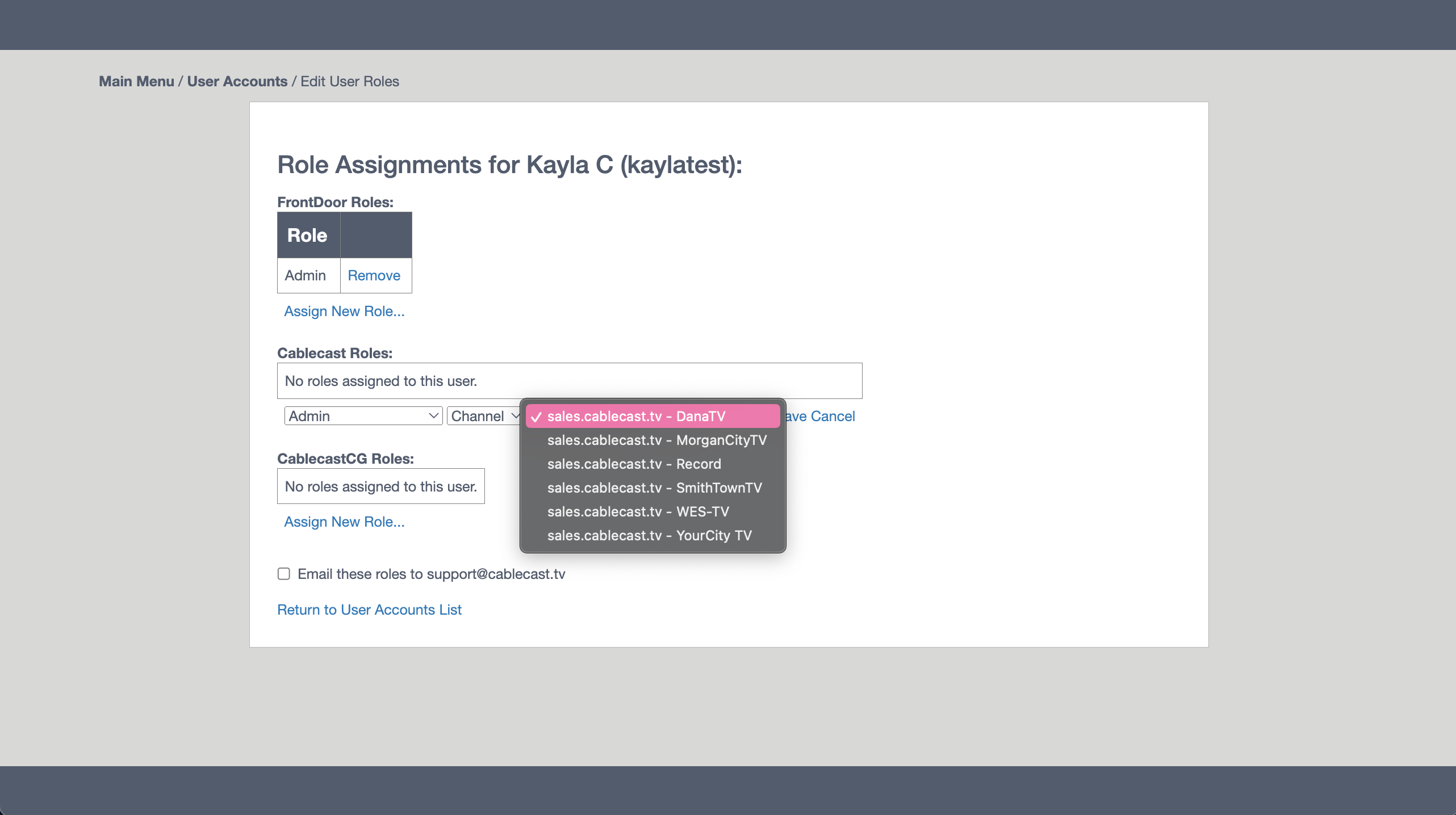
If you choose Location in the second drop-down, most users will only have one option (Default Location) unless your system is configured with multiple locations or the location name has been changed to something else, such as Station Name Head End.
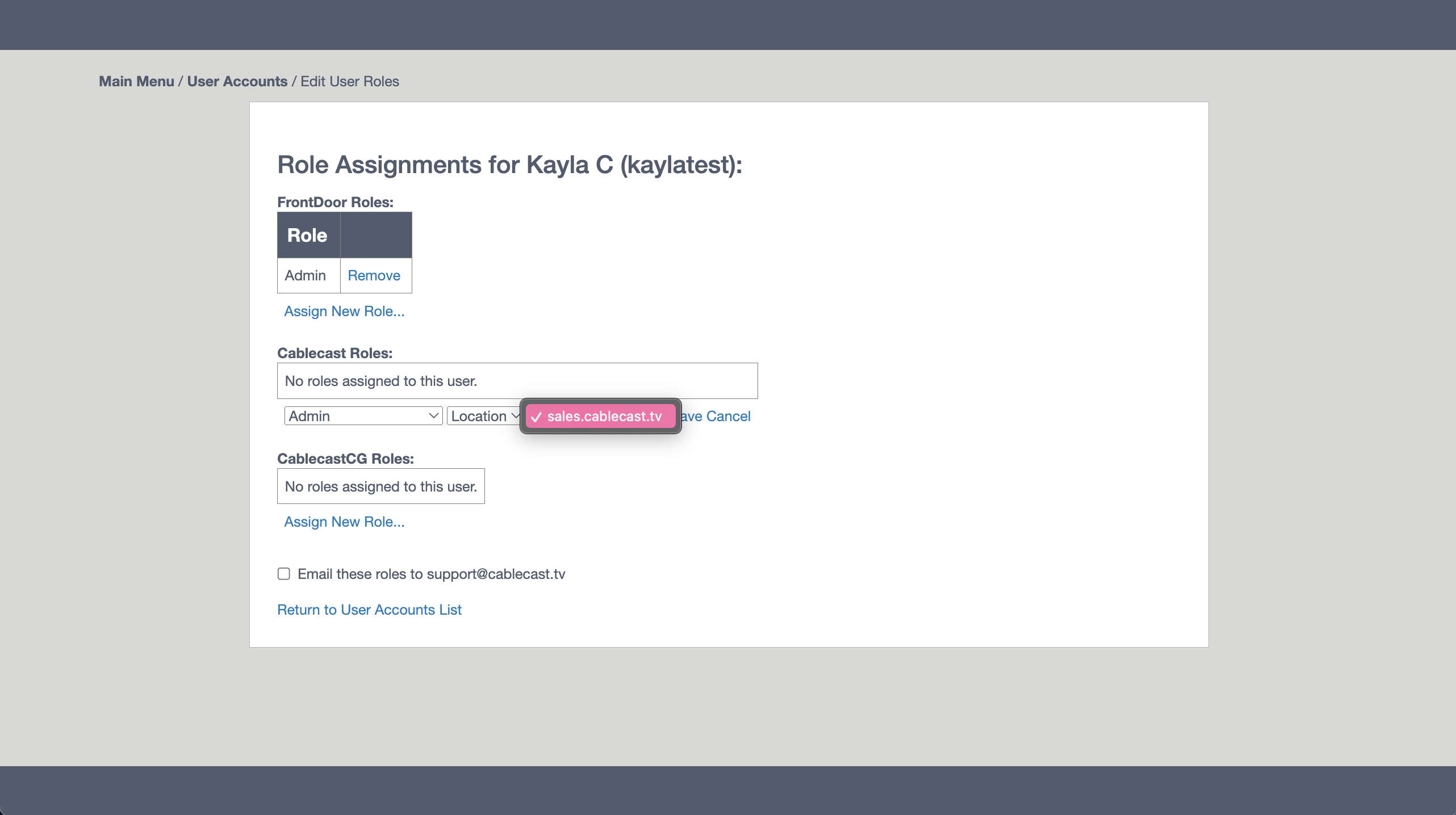
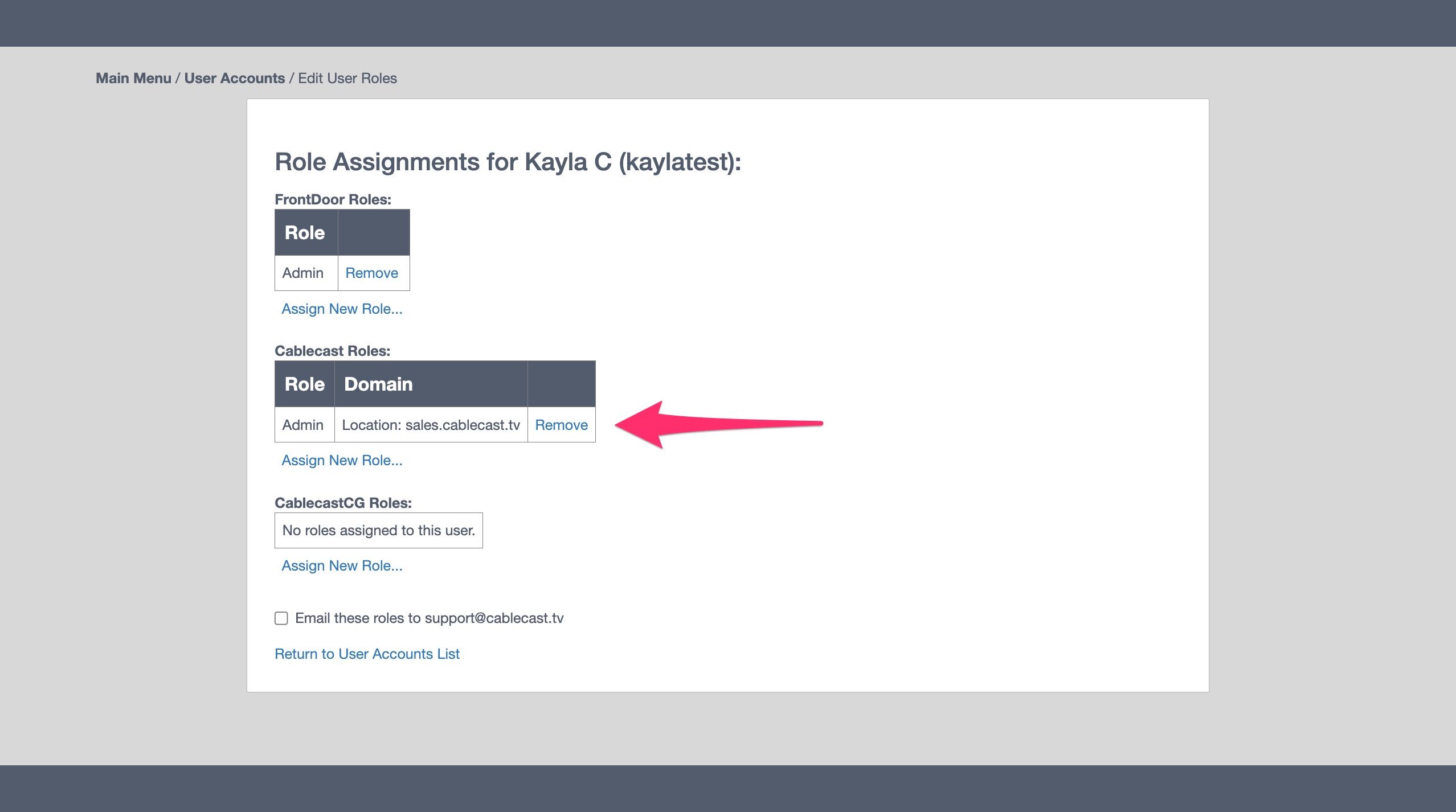
Once you've applied the role settings you want, be sure to click Save to the right of the role. You'll see the new role listed under Cablecast Roles and can then add additional Cablecast roles if needed.
Similarly, if you're adding Cablecast CG roles, click Assign New Role… and choose the role from the first drop-down. Then choose whether you want to assign that role to a particular zone or by zone tag in the second drop-down.
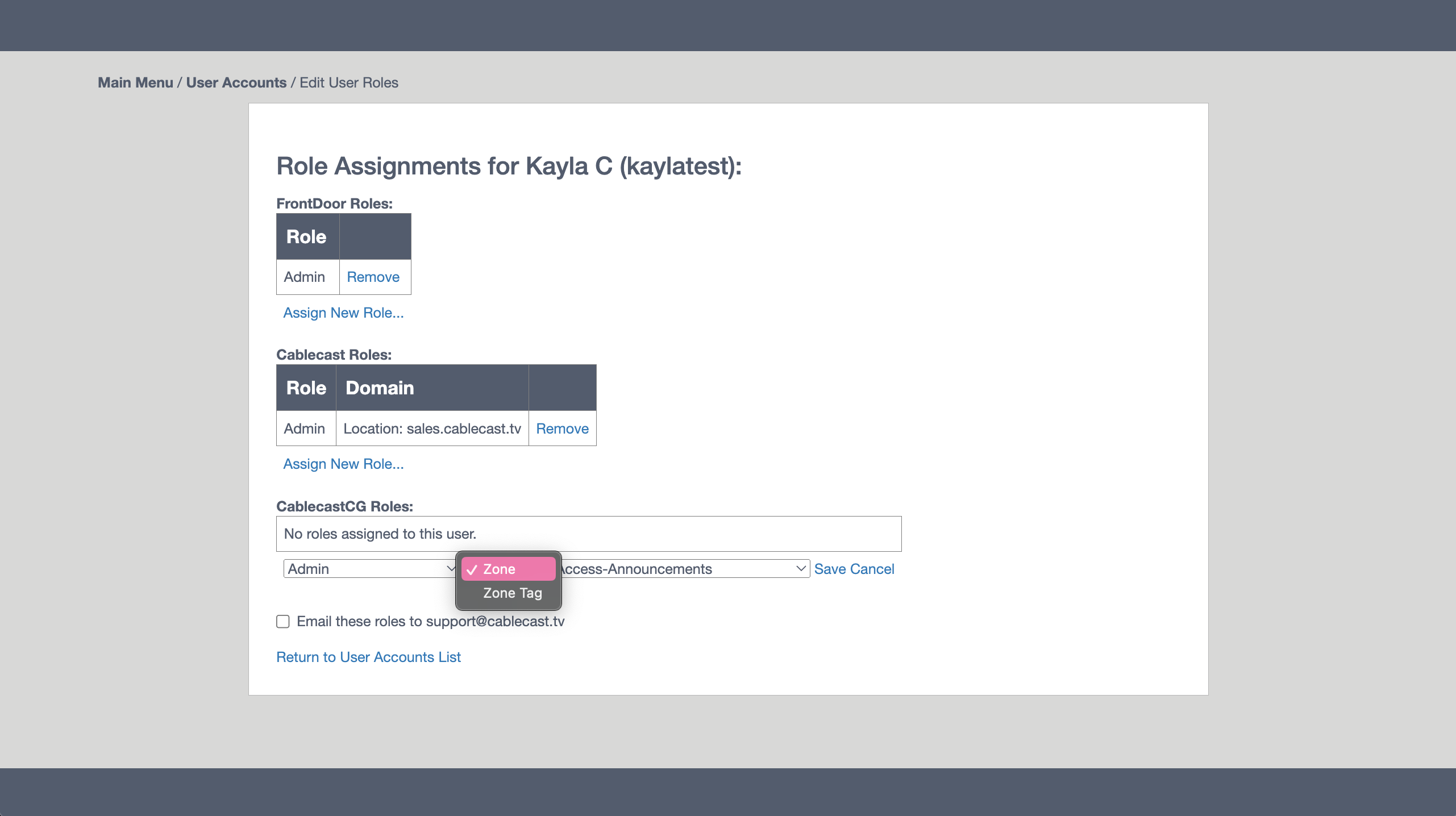
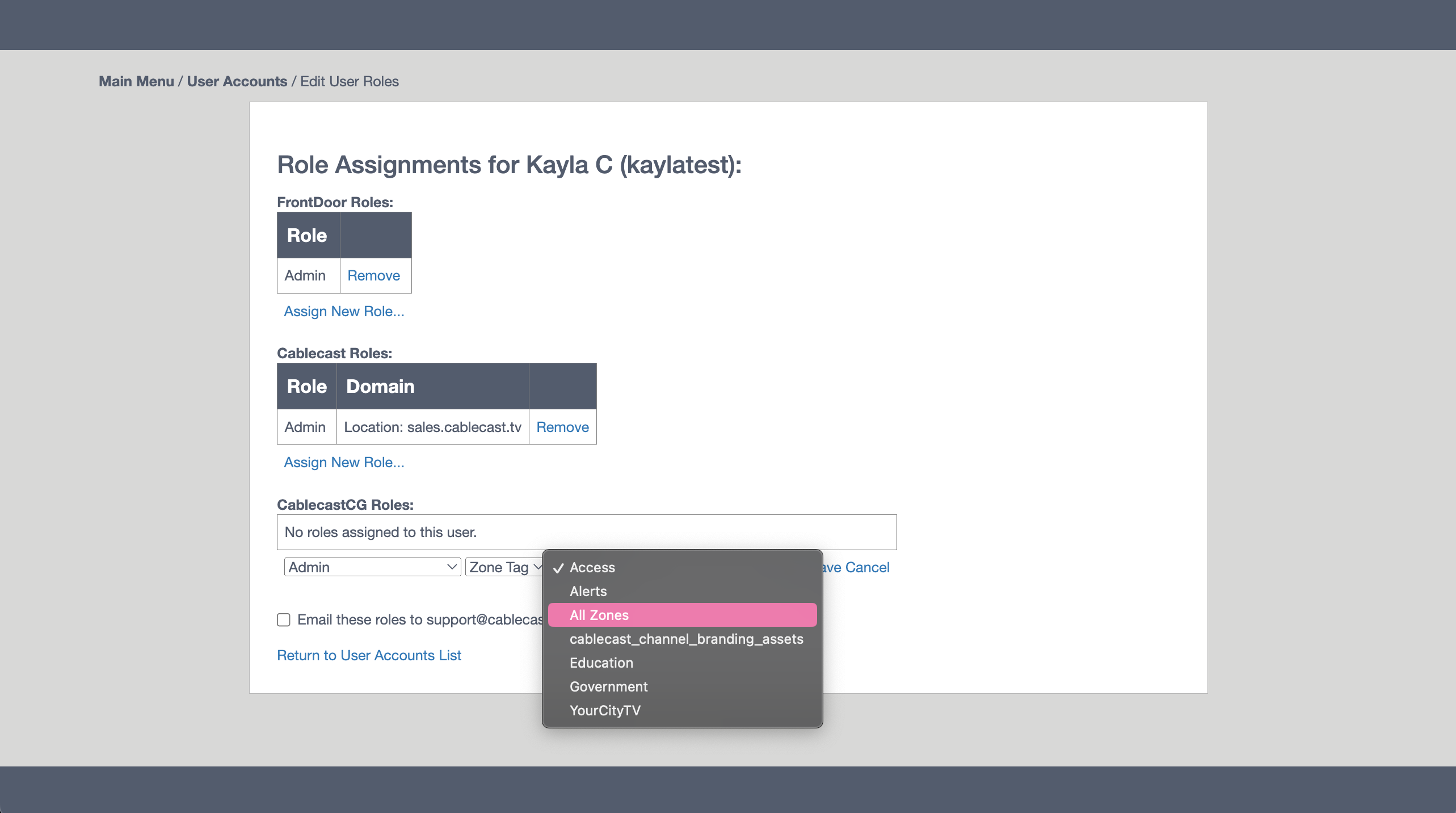
If you want to assign the role to all zones, choose the Zone Tag option and then choose All Zones in the third drop-down. You can also choose from the zone tags that are in use on your system, which will assign that role to all zones with that tag.
For example, if you have multiple Cablecast CG players using different CG Channel templates, you might want your City Clerk to only manage zones on the Government CG channel. If those zones are all tagged with Government, choose Zone Tag from the second drop-down and the Government tag in the third drop-down. The City Clerk will then only be able to add bulletins in zones tagged with Government.
If you only want the City Clerk to be able to add bulletins to a specific zone on the Government CG channel, choose the Zone option in the second drop-down and then select the zone you want that person to be able to add bulletins to from the third drop-down.
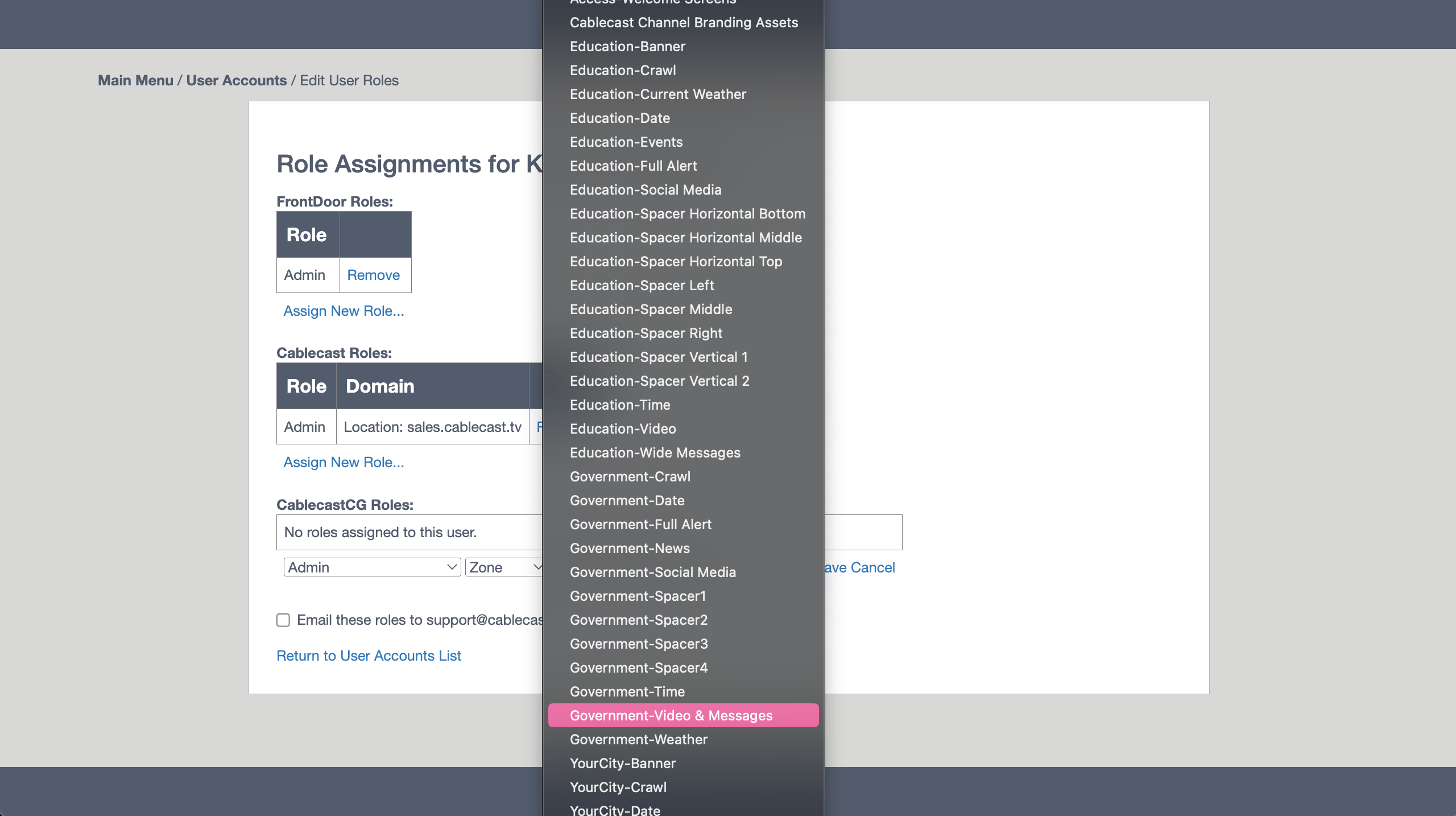
Once you've applied the role settings you want, click Save to the right of the role. You should then see the role listed under Cablecast CG Roles.
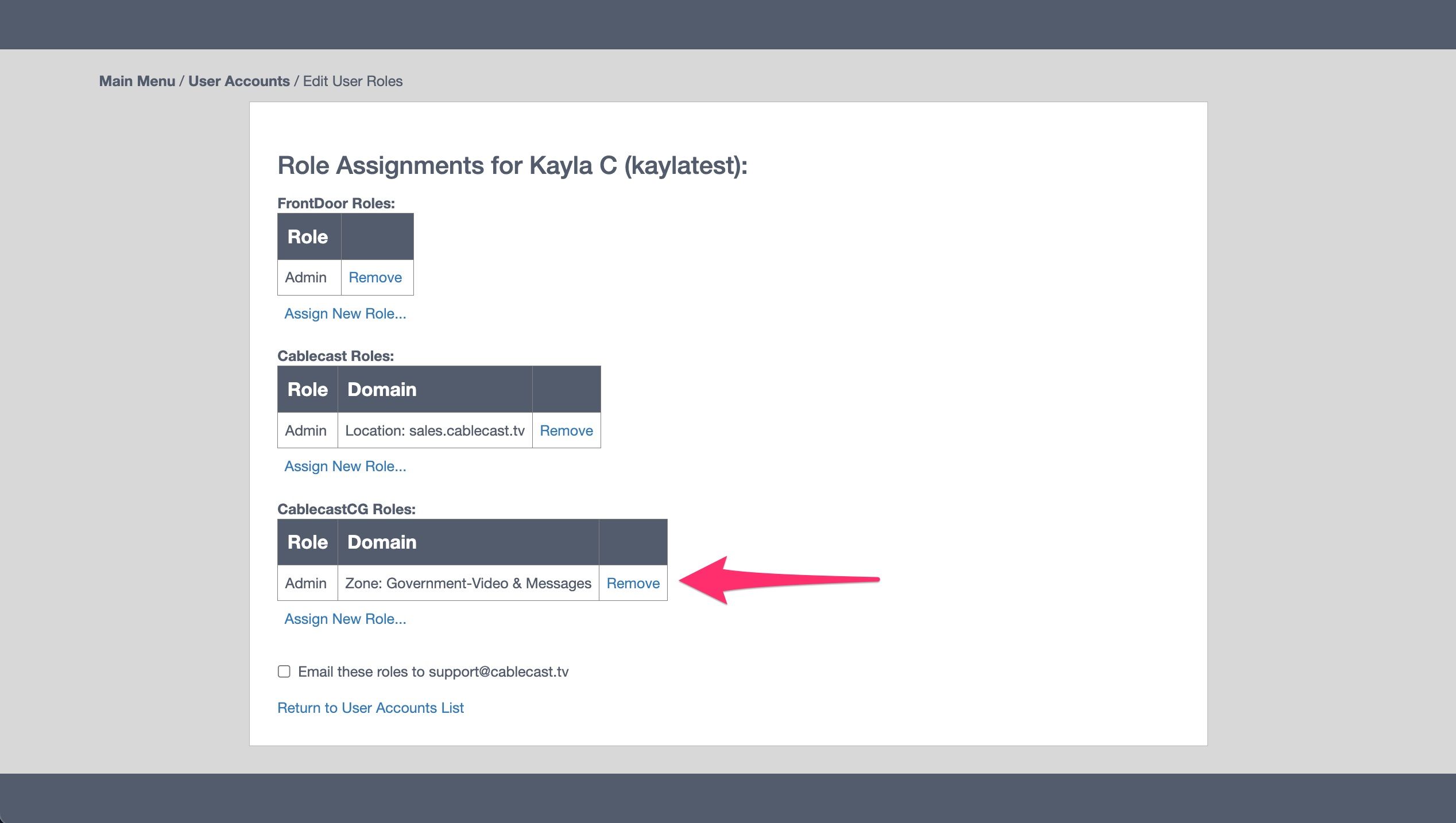
Once you have added the appropriate roles, there is nothing further you need to do. The user should be able to log in and have access to only those areas of Cablecast and/or Cablecast CG that they have been assigned roles for. If at some point you need to add or remove roles, you can go back into the Assign Roles page for the user and make changes as needed.
