SRT Streams In Cablecast 7.5+
Summary
Cablecast 7.5 introduced support for SRT network streams. SRT is an open-source video transport protocol that is optimized for unpredictable networks such as the internet. SRT support is currently in technical preview, meaning the setup, configuration, and final features of SRT support may change as we receive feedback from real-world testers utilizing SRT in the field.
Introducing SRT Network Stream Support In Cablecast 7.5+
With Cablecast 7.5+, you can now play, record, and live caption SRT streams just like other supported network streams in Cablecast. SRT stands for Secure Reliable Transport and is an open-source protocol originally developed by Haivision. The protocol is designed to solve many common problems when delivering video and audio over unreliable networks such as the public internet. The SRT protocol utilizes a number of techniques to achieve its performance, such as:
Forward Error Correction (FEC)
Packet Loss Concealment
Congestion Control
To learn more about these techniques and SRT, visit: SRT Video Streaming Protocol (Secure Reliable Transport)
SRT Call Modes and Cablecast Deployment Considerations
An SRT device can operate in one of several call modes.
Listener - The device waits for an incoming connection to initiate the stream. This is the default mode that Cablecast operates in.
Caller - The device initiates the connection, "calling" the listening device and establishing the stream. Cablecast can also be configured to operate in caller mode by selecting the SRT Caller stream type (see Creating an SRT Stream below).
Call mode only determines which device initiates the network connection — it has no effect on the direction the video itself flows. Regardless of call mode, the video always flows from the encoder (the source) to Cablecast (which plays or records it). When Cablecast is set to SRT Caller, it is still receiving and playing the stream; it is simply the one that opens the connection, which means the encoder must instead be configured to run in listener mode and wait for Cablecast to connect.
By default, Cablecast, specifically the Cablecast VIO or Flex Video Server, operates in listener mode (the SRT stream type). When an SRT network stream is scheduled to play or record, the Cablecast Video Server Engine will start listening on the configured port for that SRT Network Stream on the VIO or Flex Server scheduled to play or encode that SRT stream. If no stream is being received, the video server engine will output the configured standby graphic, if one is available, until an SRT encoder operating in caller mode connects. Cablecast can also be configured to operate in caller mode (the SRT Caller stream type), initiating the connection out to an SRT device operating as a listener, if your deployment requires it.
The Cablecast VIO or Flex video server will already have the appropriate operating system firewall rules in place to allow the video server engine to receive the SRT stream. It is important that before attempting to use SRT network streams, the appropriate port forward or NAT rules are configured in your network's Internet router if you are attempting to receive SRT streams from the public Internet. The port forward rule must route directly to the internal IP address of the VIO or Flex video server that is actually receiving the stream, not to a router, firewall, or other public-facing host. Both TCP and UDP protocols should be open for the port chosen for the configured SRT stream. If multiple SRT streams are configured, then multiple rules will need to be created in the router. See the diagram below for how the SRT stream would flow to a typical VIO server.
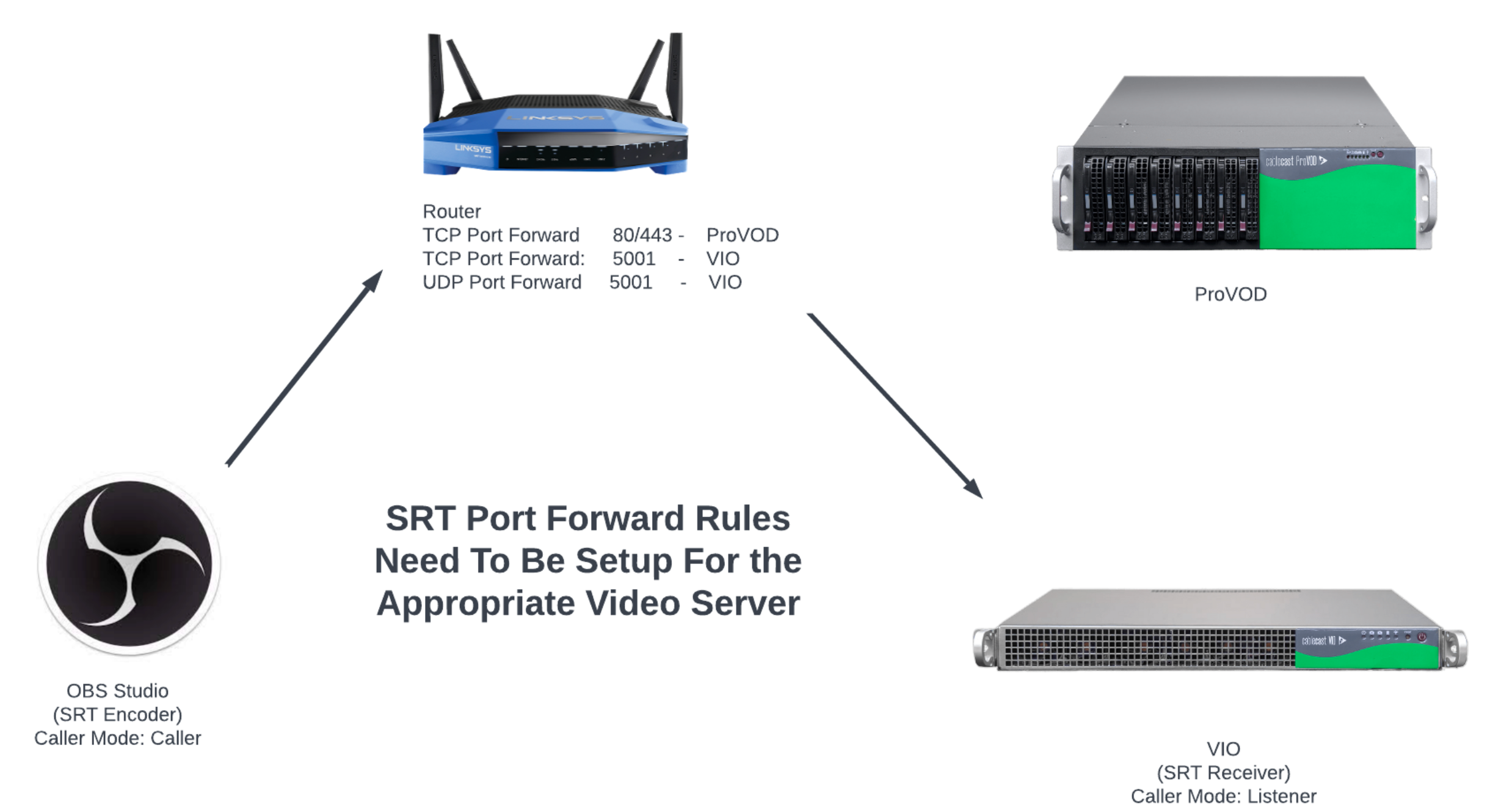
Because Cablecast operates as the listener, it must already be listening before the source starts sending. Schedule Cablecast to go live a minute or two before your live event, or start the network encode/recording, before you begin sending from your source. If you start sending from your SRT source (e.g., OBS) before Cablecast is listening on the configured port, the connection will be refused, and your encoder will show a connection error.
When configuring your SRT encoder, the stream must be sent directly to the video server playing the stream, which may not be the public-facing host server. Unfortunately, Cablecast support cannot configure your firewall for you. Please reach out to your IT team for assistance.
Considerations For Systems With Multiple Video Servers
Because SRT streams are point-to-point, only one video server in a system can receive an SRT stream at the same time. This means that it is not possible to play the same stream on multiple channels if those channels use different video servers for their primary devices.
If you have multiple servers and are using multiple SRT streams that will go to different servers, put the name of the server in the name of the stream to help avoid confusion.
Scenario: I have a VIO4 server for my public, education, and government channels. Can I play an SRT stream on two channels and encode it at the same time?
Yes! Internally, when playing any network stream, the Cablecast Video Server Engine connects and decodes the stream once and reuses that stream internally for all use cases, including playouts on all server outputs and recording. Since all playouts and recording operations are on the same VIO4, only one server needs to receive the SRT stream, and this would work fine.
Scenario: I have two VIO Omni Servers for my public and educational channels. Can I play the same SRT stream for my High School Graduation on both channels?
This scenario will not work because the VIO Omni is a single-channel server. Each server would need to receive the SRT stream, and an SRT stream can only be sent to one server at a time. For situations like this, using a network stream protocol that is server-based and offers multiple connections, such as RTMP or HLS, would be recommended.
Creating An SRT Stream
Creating an SRT stream in Cablecast is easy, just like creating any other network stream in Cablecast.
Start by clicking Settings from the Main menu.
Click Location Settings.
Then select the I/O tab and choose Network Streams.
Click New to create a new Network Stream.
Give the Stream a Name.
Select a Type:
SRT — Cablecast operates as the listener. Enter a Port for Cablecast to listen on (supported ports are 1025–65535).
SRT Caller — Cablecast operates as the caller. Enter the Address of the remote SRT listener that Cablecast should connect out to.
Upload a Standby Graphic that will be displayed if there is no stream.
Click Save to save the network stream.

A Standby Graphic is recommended for SRT streams. Since Cablecast must already be encoding or broadcasting the stream before the source can connect (see above), the Standby Graphic gives you a clear visual confirmation that Cablecast is listening and ready before you start sending from your source.
If you're using the SRT type (Cablecast as listener), remember to set up the appropriate UDP and TCP port forwards on your firewall or router if receiving the stream from the public internet. This isn't necessary for SRT Caller because Cablecast initiates the outbound connection.

Setting Up a Test Encoder With OBS Studio
While there are many commercial SRT encoders available, OBS Studio is an excellent choice to get up and running quickly. We'll be following along with this guide from the OBS Studio documentation: Wiki - Streaming With SRT Or RIST Protocols | OBS.
The SRT stream URL takes the form srt://xxx.xxx.xxx.xxx:port, where xxx.xxx.xxx.xxx is the IP address or DNS address of the Cablecast host server (the VIO or Flex server actually receiving the stream) and port is the port you configured for the SRT Network Stream. Remember to substitute your own public IP or DNS address if using SRT from the public internet, or your VIO server's internal IP address if using SRT from the local area network.
First, download the latest version of OBS Studio for your computer.
Set up a simple scene using your webcam or a looping video.
Configuring an OBS scene is beyond the scope of this article. For help setting up OBS, please refer to their public documentation: OBS Studio Overview | OBS
In Controls, towards the bottom right of the screen, click Settings.
Choose Stream to configure the streaming output.
Change the Service to Custom.
Change the Server field to
srt://xxx.xxx.xxx.xxx:port, substitutingxxx.xxx.xxx.xxxwith the IP address or DNS address of your Cablecast host server andportwith your configured SRT port.Click OK to save.

Playing Your OBS Studio SRT Stream In A Cablecast Control Room
Now that we have an SRT Stream set up in Cablecast, and we have OBS configured as an SRT encoder, let's stream!
Log into Cablecast and navigate to a Control Room. [Confirm exact navigation path — this may differ from "Autopilot"]
Click Action next to the VIO or Flex server output you want to test the SRT stream on.
Set the Action to Play Stream.
Select your SRT stream from the IP Stream dropdown.
Set Switch To to the desired output.
Click Take.

The standby graphic will start playing within a few seconds. Don't start streaming from OBS until you see the standby graphic — Cablecast needs to be listening for the incoming SRT connection first. If you click Start Streaming in OBS before Cablecast is ready, OBS will show a connection error like the one below.

Once the standby graphic is playing, switch to OBS Studio and click Start Streaming from the Controls section.
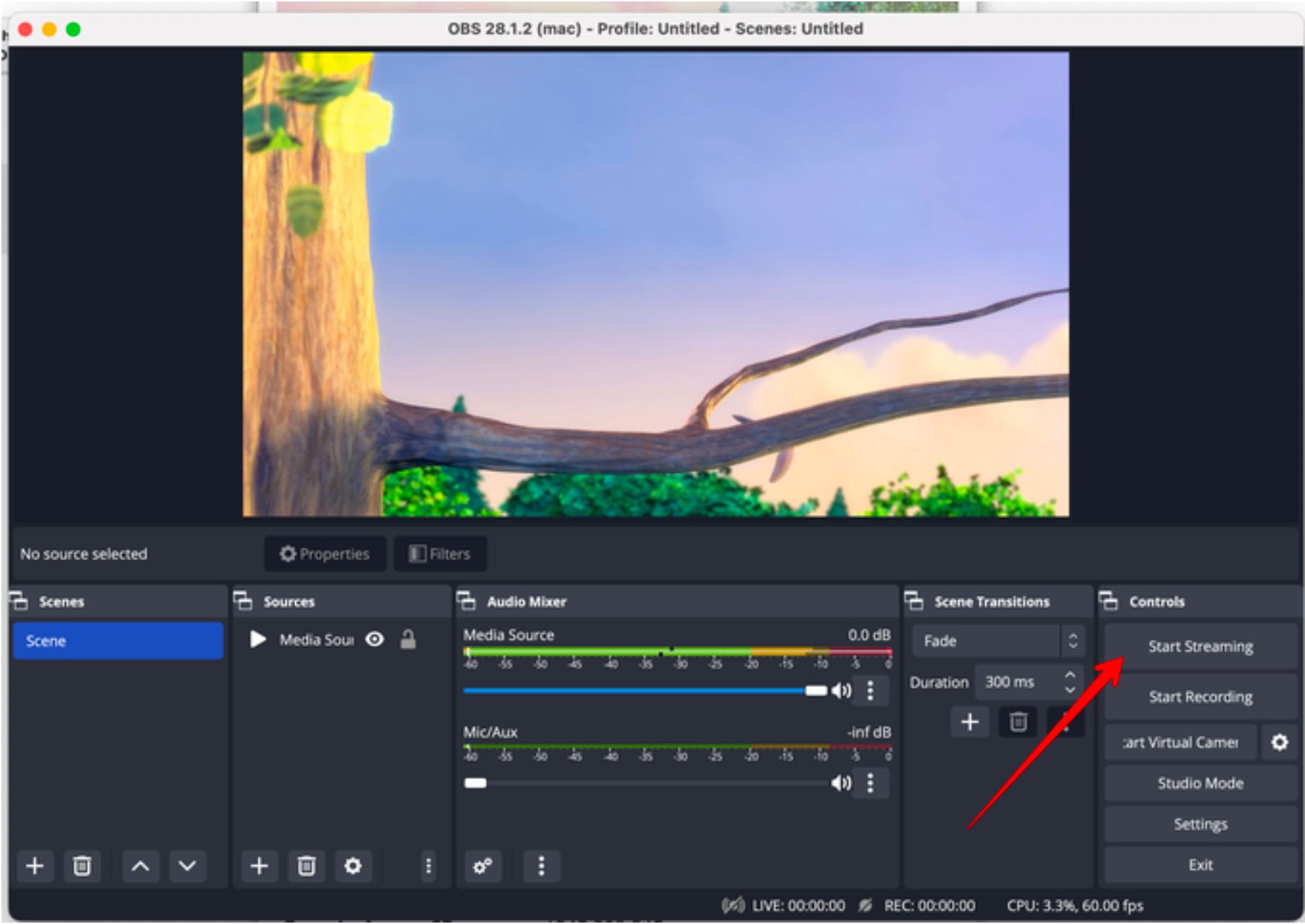
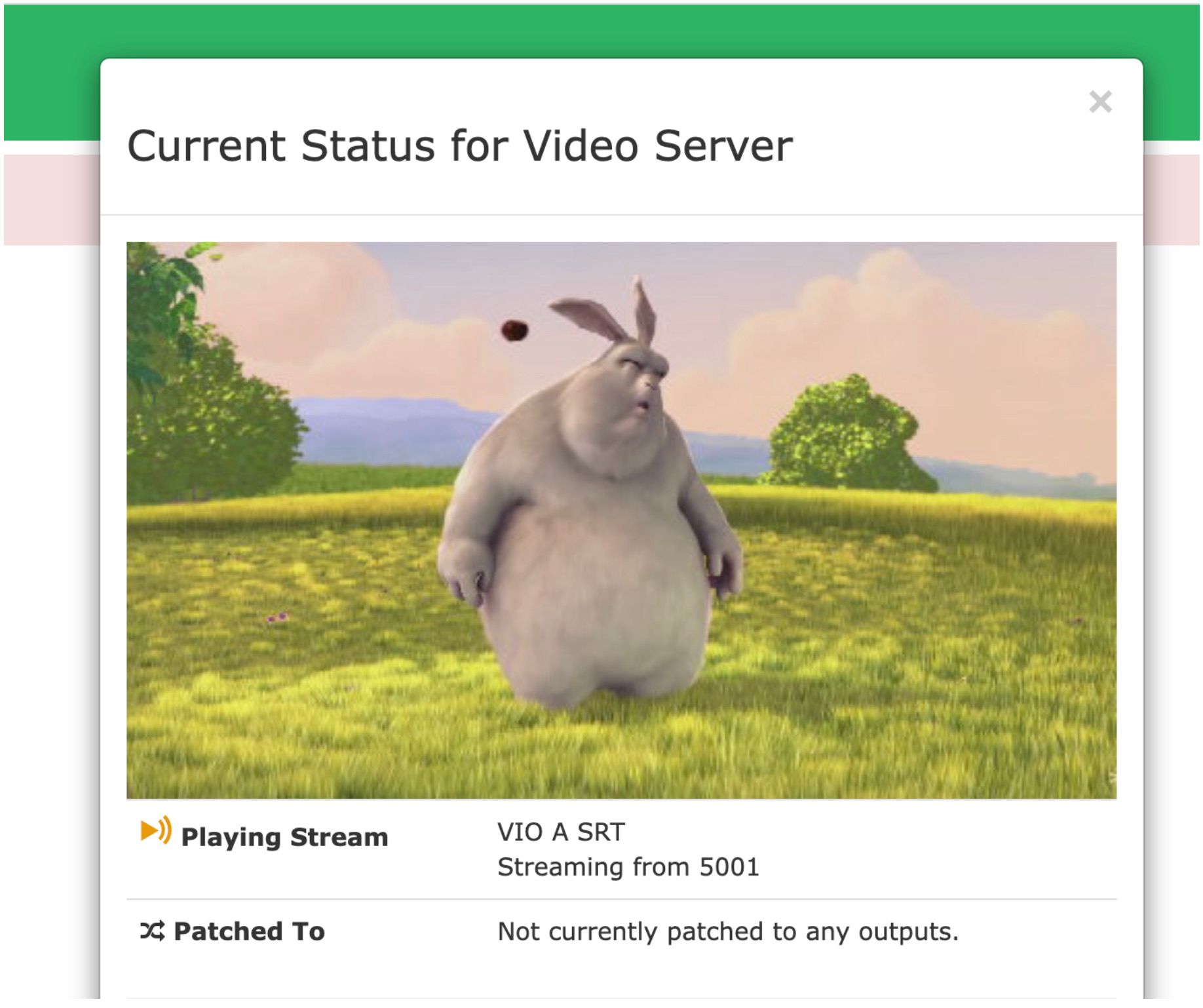
You’re now streaming with SRT from OBS Studio to Cablecast!
Recording An SRT Stream
Just like other Network Streams, SRT streams can be recorded. Recording setup and steps — including configuring the Network Encoder device and scheduling or manually starting a recording — are covered in Setting up Cablecast to use Network Streams.
Remember: just like playback, the Network Encoder must already be listening before your SRT source starts sending. Start the recording (or scheduled record window) before you begin streaming from your encoder, or you'll see the same connection error described above.
Additional Resources and Notes On Technical Preview
Now that Cablecast is configured to receive SRT streams, you can schedule SRT streams just like other shows, schedule them to record for future playback, or even live caption them with Cablecast Closed Captioning. For more on those workflows, check out these other knowledge base articles:
