How to Add a PDF Agenda to a Video on Demand (VOD) on Your Internet Channel
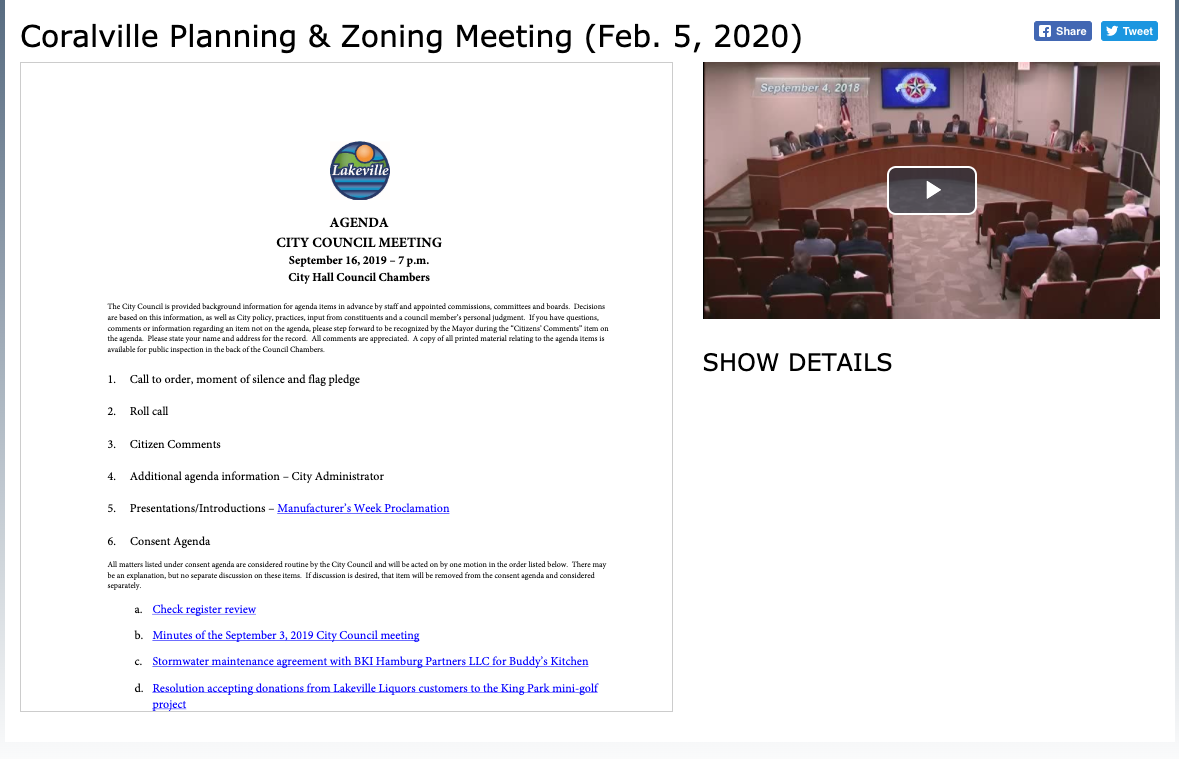
Video on Demand (VOD) is a powerful tool for getting your content out to the public and keeping your community informed. One useful Cablecast feature — especially for meeting coverage — is the ability to upload PDF files that appear alongside your video on the Cablecast Public Site. This is ideal for displaying meeting agendas so viewers can follow along.
This article walks you through the steps to display a PDF agenda on the Public Site.
Creating a Custom Field
The first step is to create a custom field in your Show Record for the agenda. To learn more about Custom Fields, see the Custom Fields in Cablecast knowledge base article.
A Custom Field is an entry in your Show Record that you create to capture information specific to your workflow. In this case, you'll be adding a field for uploading a PDF.
Navigate to Settings from the left-hand menu, then select Location Settings.

The Location Settings panel opens on the Shows tab. Select Custom Fields.
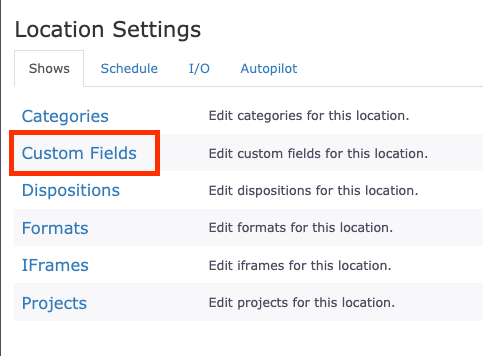
This is where you can create all the Custom Fields you want to add to your Show Records. Click the New Custom Field button in the top right. A creation dialog will open.
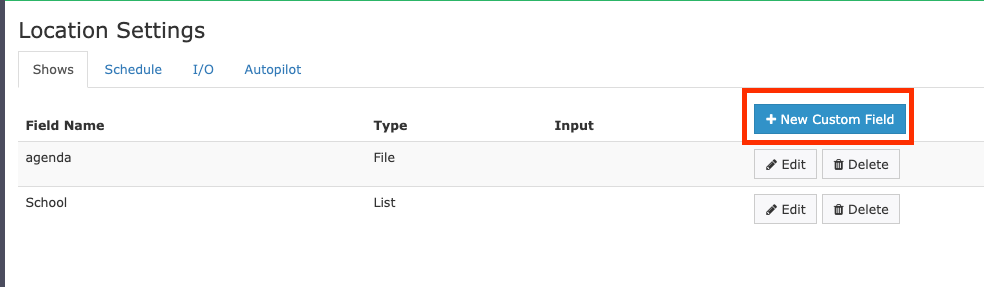
Enter Agenda as the name, set the Type to Asset, then click Save.

Your custom field is now added to your Show Record, ready for a file upload.
Adding a PDF Agenda to Your Show Record
When you open a Show Record — for example, for a Council Meeting — you'll find your new Agenda custom field under the Bibliographic Info section. Click Upload File to locate and attach the file from your computer.
Note
The agenda must be a PDF file. No other file format will display on the Internet Channel.

Adding Your Agenda to the Internet Channel
Adding a PDF to the Show Record alone won't make it appear on your Internet Channel — you'll need to configure the channel to display it.
Navigate to the Internet Video icon in the left menu, then select Internet Channels.


You may have multiple Internet Channels. If you want the agenda to appear across all of them, you'll need to repeat these steps for each one.
Click the Edit button for the channel you want to configure.

This is where you can customize the Internet Channel, including colors, logos, and the galleries that appear on the home page. To learn more, see Customizing Cablecast Internet Channels.
Along the top, select the Show Fields tab.

This section controls what information is displayed when a viewer selects a show on the Internet Channel. Click New Show Field Display. Set the Label to Agenda, set Field to Custom Field, and set Display to Embedded PDF. Click Save when finished.
Once the Show Field is added, click Save at the bottom left to save your Internet Channel settings.

Now, whenever you create a VOD and attach a PDF to the Show Record, the agenda will display on your Internet Channel.