Autoschedule Tool
The Autoschedule tool allows operators to define a series of rules that create and update schedule events automatically. For example, you could define a rule that plays the latest city council meeting every Monday, Wednesday, and Friday at 2:00 PM. Because Autoschedule rules are built using Saved Searches, schedule events update automatically as search results change. In the example above, once you create a new City Council show record, the Autoscheduler automatically updates future episodes based on the event date in the Show Record.
Creating an Autoschedule Rule
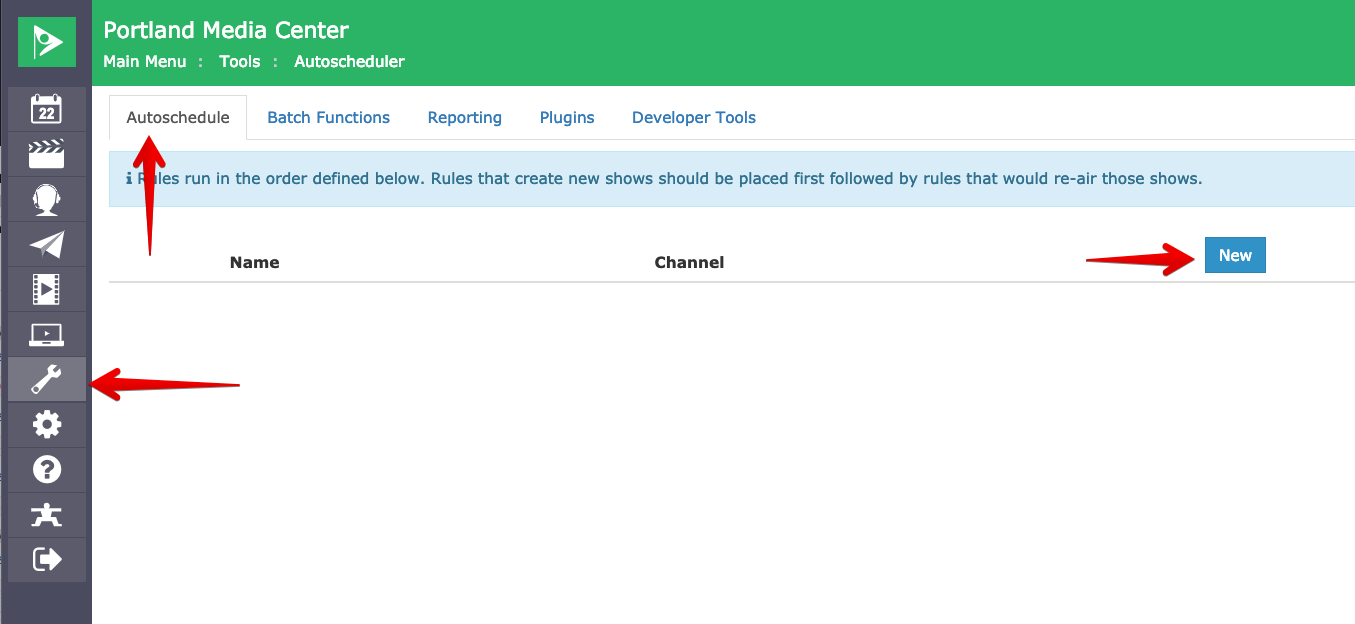
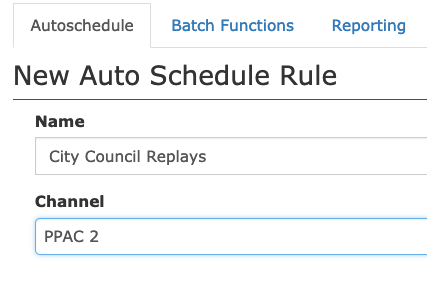
Go to Tools → Autoschedule and click New to create a new rule. At the top of the new rule screen, enter a Name and select a Channel.
Date Range
By default, the Autoschedule tool maintains a 14-day rolling scheduling window. This means it always looks 14 days ahead from today and fills in runs within that window. As each day passes, the window advances — so you never need to manually extend the schedule. The minimum window is 1 day and the maximum is 60 days.
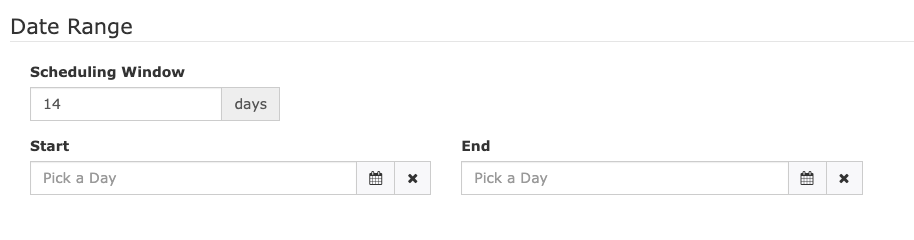
Optionally, you can also set a Start and End date to limit when a rule is active. This is useful for seasonal or time-bound programming — for example, a summer concert series that should only air between June 1 and August 31. When a start and end date are set, the rule only creates runs within that date range.

When a rule with a date range is active, it is highlighted in green in the Autoschedule rules list. An expired rule is highlighted in red.

Note: The rolling window and the optional date range work together. If a date range is set, the rule only schedules runs within both the active date range and the rolling window. Once the end date passes, the rule stops creating new runs.
Timeslots
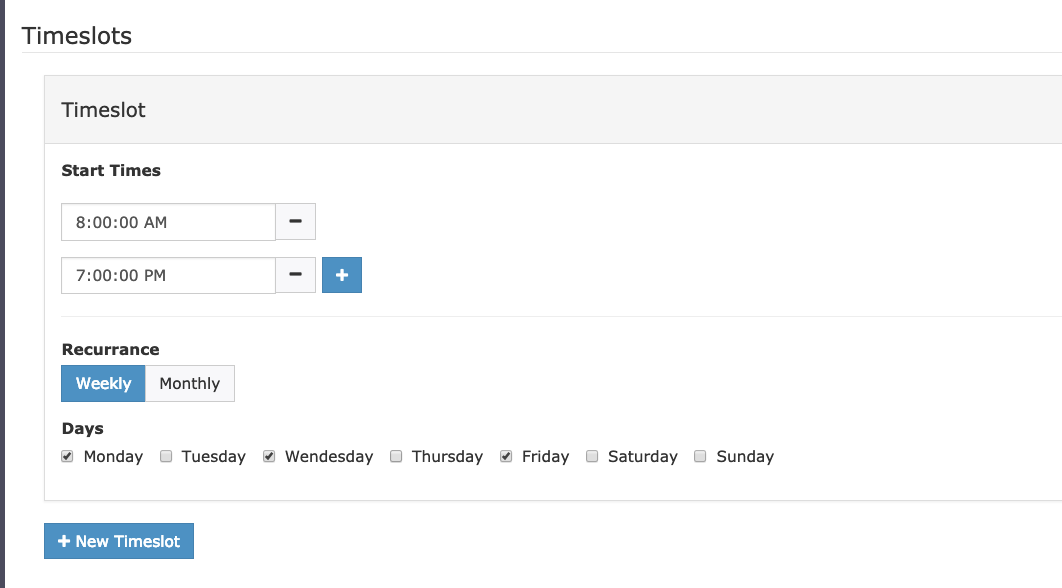
Timeslots define the start times and days of the week that schedule events should be created for a rule. An event is created for each time on the selected day. Optionally, events can be limited to a specific week of the month by changing the Recurrence to Monthly and selecting the desired week numbers.
For example:
The first screenshot below creates schedule events at 8:00 AM and 7:00 PM on Monday, Wednesday, and Friday every week of the month.
The second screenshot creates a single schedule event on the first Tuesday of the month at 6:00 PM.
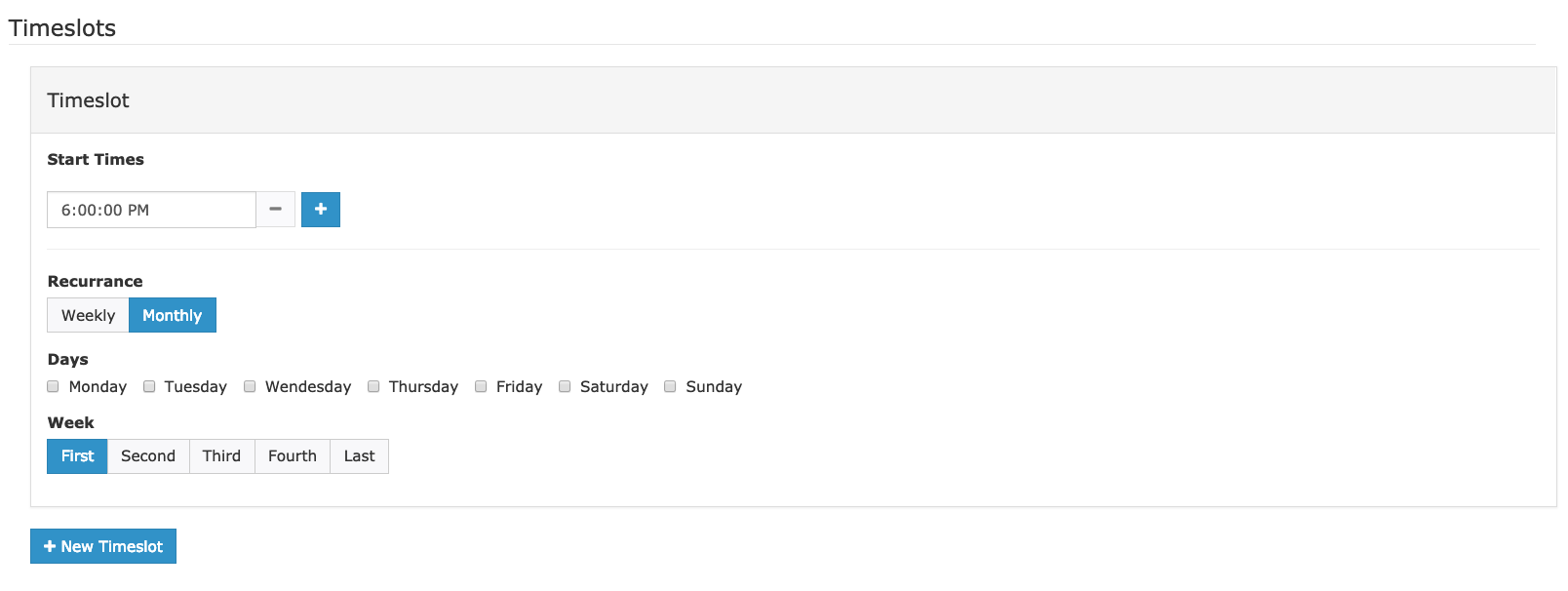
You can create as many time slots as needed to express the desired schedule output. For example, one timeslot could create runs at 6:00 PM on Mondays, while a second timeslot creates runs at 8:00 PM on Fridays.
Scheduling Options
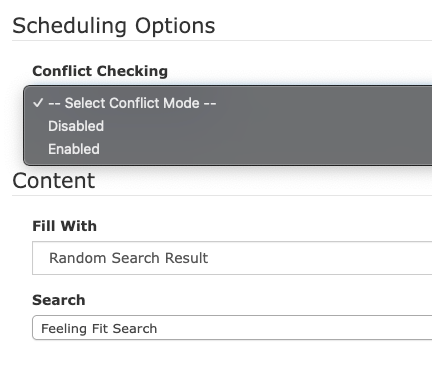
Conflict Checking is disabled by default. This option is used with the Random Search Result fill type. When enabled, the rule only schedules a show that fits within the desired timeslot based on the start time of the slot, the time of the next scheduled program, and the total run time (TRT) of the show.
Content
The Content section defines which show is scheduled for a time slot. There are several options depending on the desired schedule:
Top Search Result — Schedules the top result from a Saved Search. Useful for automatically updating the schedule as new content is added to the system.
Random Search Result — Schedules programming randomly from a Saved Search.
Single Show — Schedules the selected show. Useful for shows that repeat frequently on a predictable schedule.
New Show (Copy Existing Show Record) — Creates a new copy of an existing Show Record for each new scheduled event. Useful for automatically adding series programming as needed.
Record Event — If the Channel above is set to Record, the Content section displays settings for creating a record event in the record schedule. Useful for automatically replacing a recorded file on a set schedule.
Tip: The Top Search Result and Random Search Result options require a Saved Search to be set up before creating your rule. See Show Search and Saved Searches for instructions on building and saving searches.
Recording
In addition to creating a record event on the record schedule as described above, the New Show (Copy Existing Show Record) option displays a Record Run option, which allows the scheduled run to be configured as a record run.
Saving the Rule and Autopilot
Once the rule is saved, the Autoscheduler picks up on the new rule and starts creating runs as needed.
Note
The Autoscheduler runs every five minutes on the five-minute mark (for example: 2:20 PM, 2:25 PM, 3:00 PM). After saving a rule, it may take up to five minutes before new runs appear in the schedule.
After runs are created, they must still be sent to the hardware via Autopilot to actually air.
Special Note on Ordering
After a rule is saved, it can be positionally arranged relative to other rules on the Autoschedule screen by clicking and dragging the three bars to the left of the rule's name. Rules run from top to bottom, and it is important that rules that create shows run before rules that re-air them.
For example, you may have a rule that creates a new church service show every Sunday for airing at 8:00 AM, and another rule that plays the latest church service at 12:00 PM and 5:00 PM on Sunday. For these rules to work together as intended, the rule that creates the church service must come before the rule that plays the later services.
The Autoschedule Report
In the schedule, runs inserted by an Autoschedule rule have a robot head icon to the left of the title. Autoscheduled runs can be deleted, moved, bumped, and changed just like other runs. Clicking the robot icon navigates you to the details screen for that Autoschedule rule. You can also click Details for a rule on the Autoschedule index screen.
Manually Removing Autoscheduled Runs
If you manually remove an Autoscheduled run from the schedule, Cablecast does not try to put that run back into the schedule unless you reset the rule.
The details screen provides a brief summary of the rule at the top, as well as a report of recent and future schedule items created by the rule. The report highlights runs that were changed or deleted. This makes it easy to verify that your Autoschedule rule is behaving as expected.

From this screen, a rule can also be deleted. Note that all future runs created by the rule are deleted when you delete a rule.

You can also reset a rule here. If you make any changes to the timeslots or fill content for an existing rule, you need to reset the rule for those changes to apply to any previously scheduled runs. Resetting a rule removes any existing scheduled runs and re-runs the rule the next time the Autoscheduler runs.

Example Scenarios
Below are a few examples of how to accomplish common tasks using the Autoschedule tool.
Give a producer a regular timeslot
In this example, you want to give Nick Brandt his own timeslot on your schedule so his latest programs play every Tuesday and Thursday at 8:00 PM.
Create a Saved Search that filters by Producer: Nick Brandt and orders the results by Event Date descending. Title this search "Nick Brandt's Latest."
Go to Tools → Autoschedule and click New to create a new rule.
Enter a meaningful title and select the desired Channel.
In the Timeslots section:
Enter 8:00 PM in the Start Time field.
Set Recurrence to Weekly.
Check Tuesday and Thursday for the Days.
In the Content section:
Choose Top Search Result.
Select the Saved Search created in step 1.
Save the rule.
Record and replay a daily program at a different time
In this example, you want to record the Democracy Now News Show off satellite every morning at 8:00 AM and replay it at 10:00 AM, 1:00 PM, and 7:00 PM. This requires two rules: the first records the satellite feed to the same file every morning, and the second schedules the show associated with that recording at the replay times.
Create a new Show Record for the Democracy Now replays.
The reel should have a length of 1 hour.
The reel format should play from your video server.
For this example, assume the new show has a Show ID of 123.
Create a new Autoschedule rule to record the file.
Set the Channel to Record.
In the Timeslots section:
Set the start time to 8:00 AM.
Set Recurrence to Weekly.
Check Monday through Friday for the Days.
In the Content section, choose a source and destination device. The destination should be the same video server your show from step 1 plays from.
In the file name field, enter a value prefixed with the Show ID. In this example:
123-1-democracy now.Save the rule.
Create a new Autoschedule rule to replay the file.
Enter a meaningful title and select the desired Channel.
In the Timeslots section:
Enter 10:00 AM, 1:00 PM, and 7:00 PM in the Start Time fields.
Set Recurrence to Weekly.
Check Monday through Friday for the Days.
In the Content section:
Choose Single Show.
Find and select the show created in step 1 (Show ID 123 in this example).
Save the rule.
Record a new city council meeting on the first and third Tuesday of the month and replay it every day
In this example, you want to air and record a new live city council meeting twice a month and replay the latest city council meeting every day. This requires two rules: one to create new shows from a template show (with recording), and one to schedule the replays.
Create a new Show Record to use as a template.
The show format should air your live council meeting.
Set the length to be as long as the meeting might run. Scheduling it longer than needed is a safe approach — it can always be stopped early or trimmed.
For this example, assume this show has an ID of 500.
Add the show to a Project for City Council Meetings.
Create a Saved Search for City Council Meetings that filters by Project and orders by Event Date, selecting shows within the City Council project.
Create a new Autoschedule rule to create the record runs.
Enter a meaningful title and select the desired Channel.
In the Timeslots section:
Enter 6:00 PM in the Start Time field.
Set Recurrence to Monthly.
Check Tuesday for the Days.
Select First and Third for the Weeks.
In the Content section:
Choose New Show (Copy Existing Show Record).
Find and select the template show created in step 1 (Show ID 500 in this example).
Check Record Run and choose a video server encoder for the Record Device.
Save the rule.
Create a new Autoschedule rule for the replays.
Enter a meaningful title and select the desired Channel.
In the Timeslots section:
Enter 6:00 PM in the Start Time field.
Set Recurrence to Weekly.
Select all Days.
In the Content section:
Choose Top Search Result.
Select the Saved Search created in step 2.
Save the rule.
After both rules are saved, ensure the rule created in step 3 (recording the runs) is positioned above the rule created in step 4 (replaying the runs). This ensures the live airing is always created and scheduled first so replays don't accidentally reserve the first-run timeslot.
After a meeting first encodes, its Show Record format will need to be adjusted to a video server format. This is also a good time to adjust the cue and length and update any metadata for the specific show.
