Custom Fields in Cablecast
Overview
Organization is key when working with large numbers of Show Records in Cablecast. The Project, Category, and Producer fields in your Show Records are useful for this — they allow you to search for programs and run reports filtered by those fields.
For even greater flexibility, Cablecast allows you to create an unlimited number of custom fields in a variety of types. These custom fields help you be more specific and give you greater control when working in Cablecast.
Navigating to Custom Fields
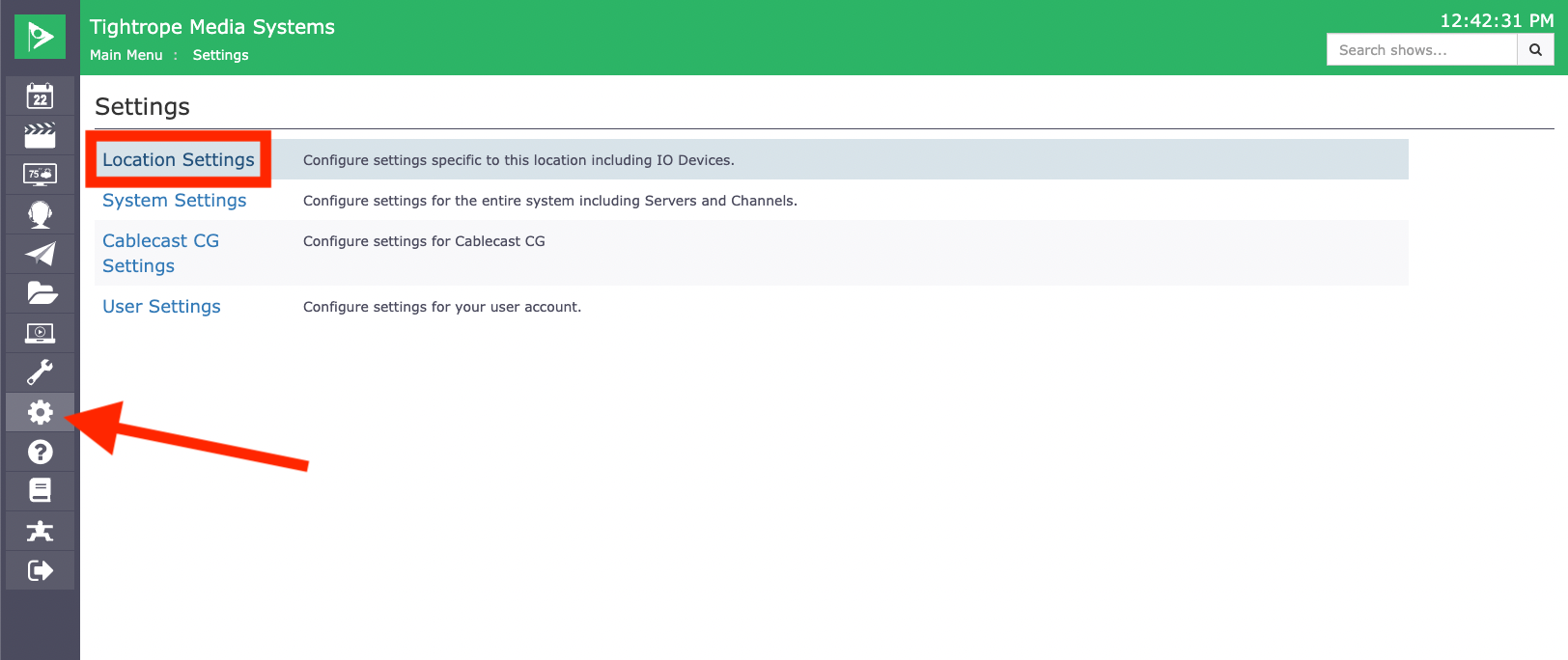
To access your Custom Fields settings, click the Settings icon in the left-hand menu bar, then select Location Settings.
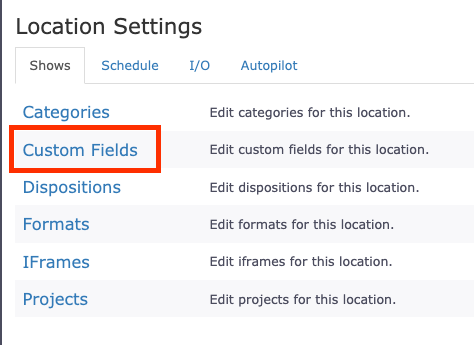
Once you are in Location Settings, the second option on the list is Custom Fields. Click on it.
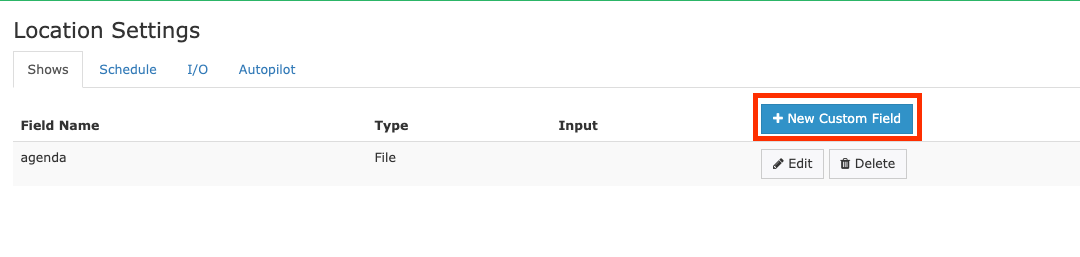
If you are already using Custom Fields, they will all be listed on this screen. To create a new Custom Field, click the New Custom Field button at the top right of the page.
Types of Custom Fields
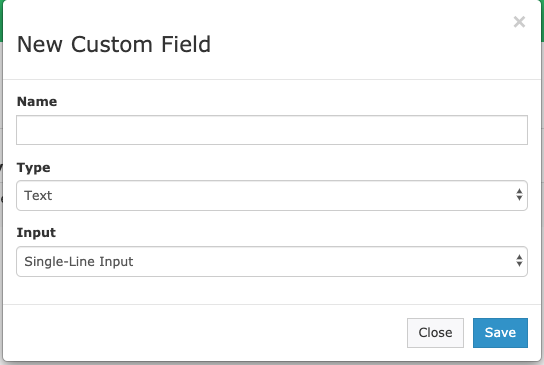
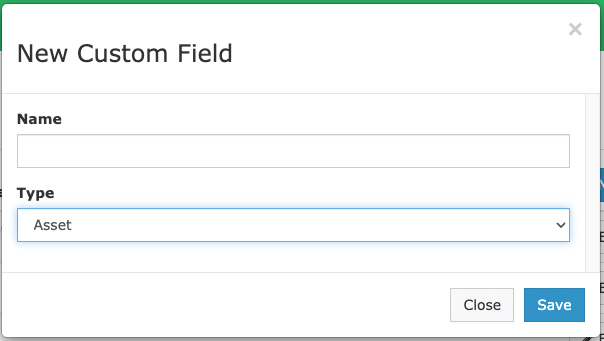
When you click New Custom Field, a new window opens where you can choose the type of Custom Field you want to create. There are seven types available.
Text
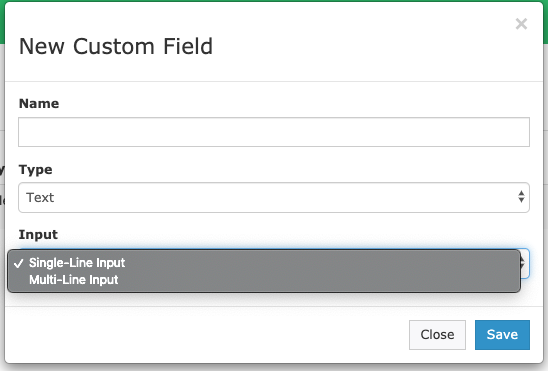
The Text type offers two input options: Single-Line Input or Multi-Line Input. The right choice depends on the intended use of the Custom Field. For example, if you want to create a dedicated field for a show's description while reserving the standard comment field for internal notes, Multi-Line Input would be the better fit. For a single word or short phrase, Single-Line Input is sufficient.
List
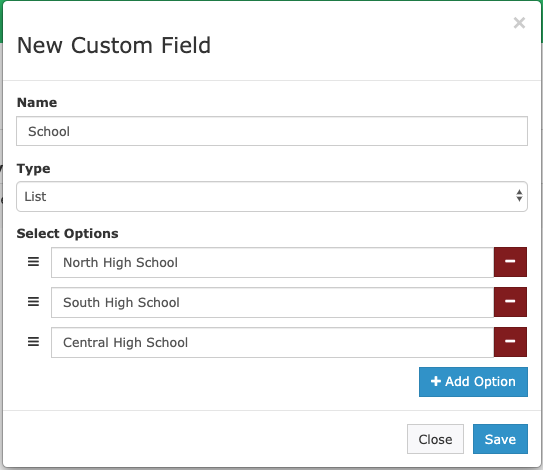
The List type creates a drop-down list of options to choose from in your Show Record. When this type is selected, you can add options by clicking the Add Option button. For example, if your organization covers sporting events for multiple schools, you could use a List field to quickly select which school a show is associated with.
Date
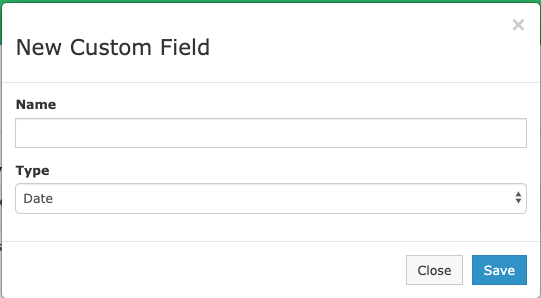
The Date type adds a date field to your Show Record. This can be useful for tracking when the Show Record was created, separate from the standard Event Date field used to record when the event took place.
Number
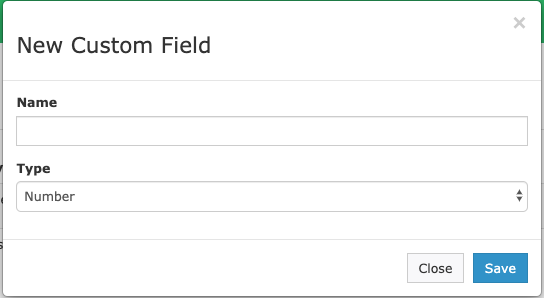
The Number type adds a numeric field to your Show Records. Common uses include tracking episode numbers or season numbers.
Asset
The Asset type allows you to upload and attach a file directly to your Show Records. A common use case is attaching PDFs of meeting agendas to council meeting records. With some additional configuration in your Internet Channel settings, that agenda can appear alongside the VOD of the corresponding meeting. This KB article goes over embedding a PDF agenda on your Internet Channel.
Producer
The Producer type allows you to attach an additional Producer record to a show. For example, you could create Producer Custom Fields for roles such as Director or Camera Operator and associate those individuals with the Show Record. Note that this field pulls from the same data as the Producer field.
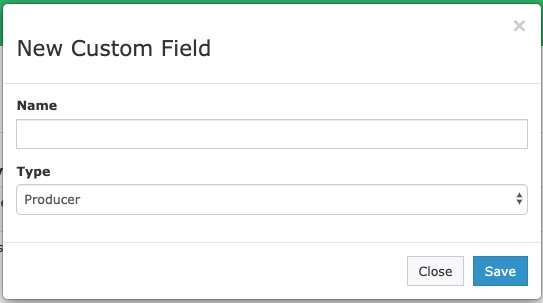
Once you have chosen a type and named your new Custom Field, click Save at the bottom of the window. The field will then be available in your Show Records.
Using Custom Fields in Cablecast
Your new Custom Fields will appear in the Bibliographic Info section of each Show Record.

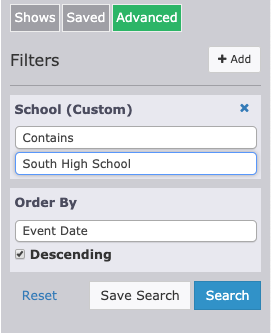
Once you begin using Custom Fields, you can use them in Advanced Searches:
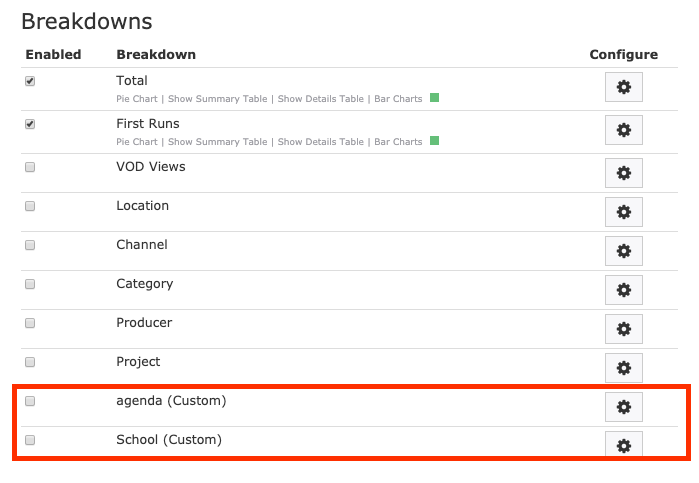
You can also generate reports using your Custom Fields as breakdowns:
As with standard Show Record fields, the value of searching and reporting is directly tied to how consistently these fields are filled out. Used consistently, Custom Fields can be a powerful organizational tool.
