Cablecast Cloud Services: Managing your App Channel
Overview
This article covers the basics of customizing your App Channel content for your custom-branded apps and the free Cablecast App.
Note: You must be an active subscriber to one of our REFLECT services to have access to a Cablecast Cloud Services account. Your Cablecast system must also meet the minimum software version requirement for Cablecast Cloud Services to work. Contact Cablecast Support to confirm your system is eligible.
What You Will See
Once your Cablecast Cloud Services Apps account is created, you will receive login information to access the portal at https://cloud.cablecast.tv/login.
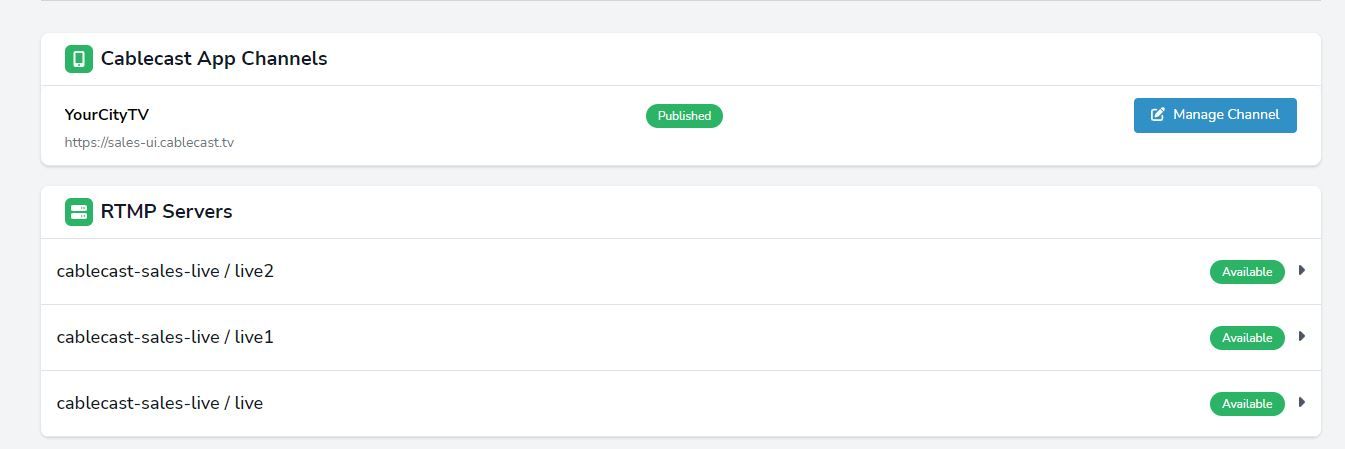
After logging in, you will see the name of your channel — or a list of channels if you have more than one — that have been created for you. From there, you can edit the content being sent to your App Channel and adjust the basic channel style. Each channel shows a status of published or unpublished.
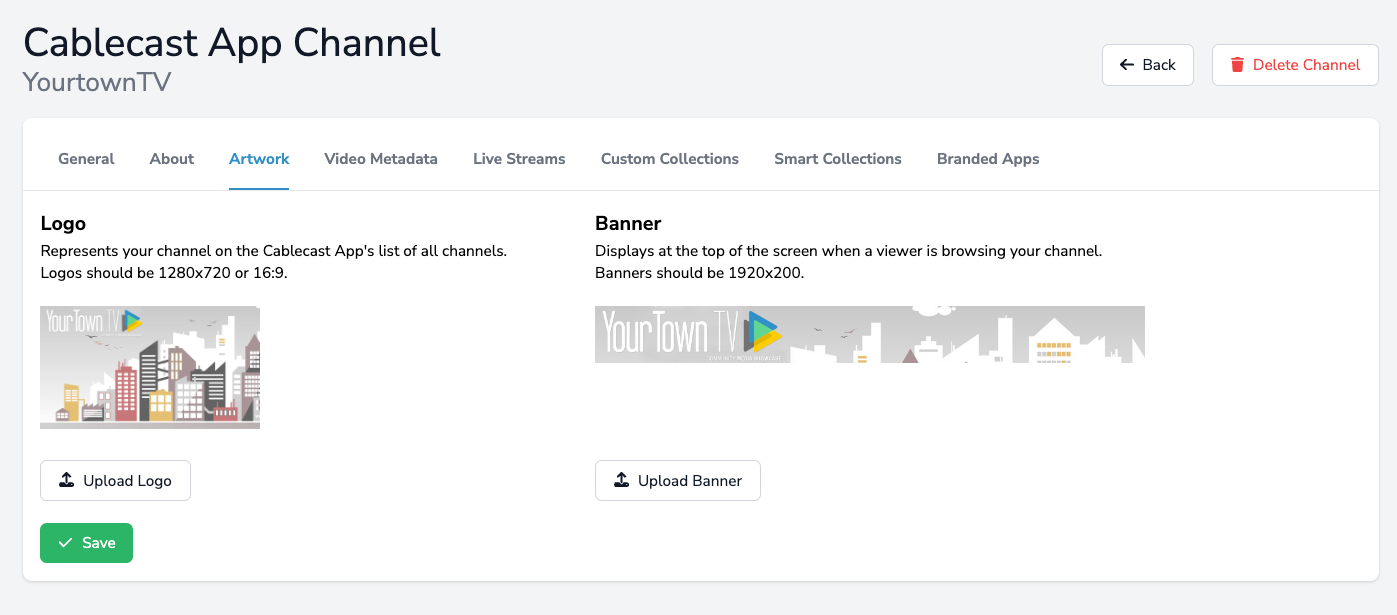
Note: Your App Channel will only publish if you have both a Banner and a Logo image uploaded.
Editing Your Channel
To edit your channel, select the Manage Channel button next to the channel name. The channel will initially show a status of Not Published. From here, you can update general info, upload channel artwork, and customize your video metadata.

General
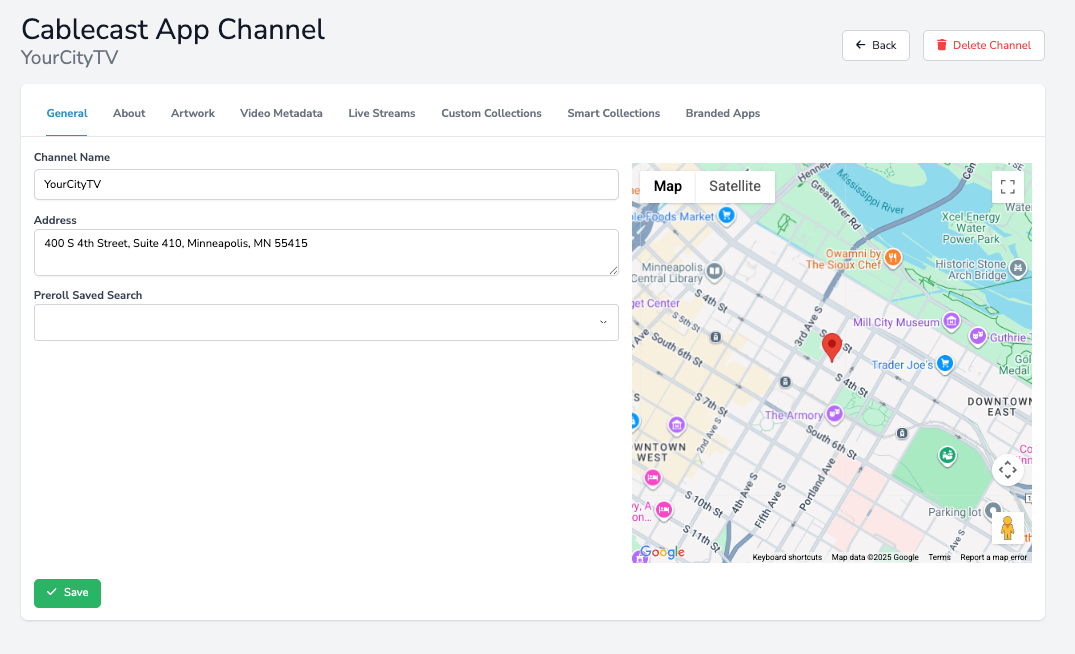
In General, you can edit the channel name that will be displayed to viewers. You will also enter the address of your facility, which helps viewers find App Channels local to them. The correct ZIP code is important for this to work accurately.
Optionally, you can select a Saved Search to use as a pre-roll before video playback starts. For more information, see Show Search and Saved Searches in Cablecast.
About
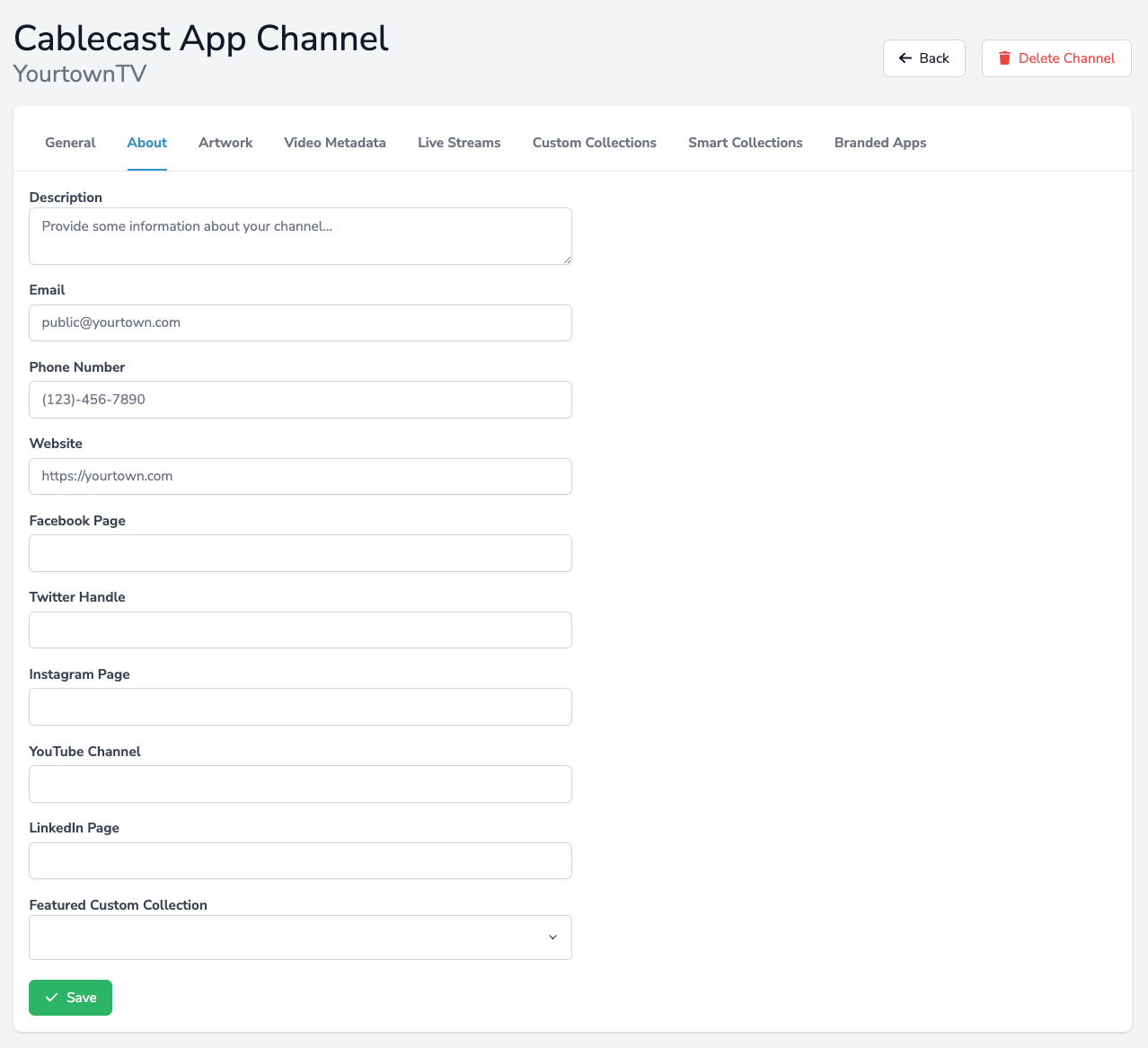
The About tab provides fields to share information with your app users, including contact information, social media accounts, and a description of your station, programming, or branded apps.
It also includes a Featured Custom Collection field, which lets you highlight a specific set of videos using one of your Saved Searches. Select the Saved Search you want to feature from the dropdown menu.
Artwork
In Artwork, you can upload your Logo and a Banner image for your channel.
Recommended image size for your Logo: 1920×1080
Recommended image size for your Banner: 1920×200
Avoid using transparency on the Banner image, as it can appear inconsistent across over-the-top (OTT) platforms.
Video Metadata
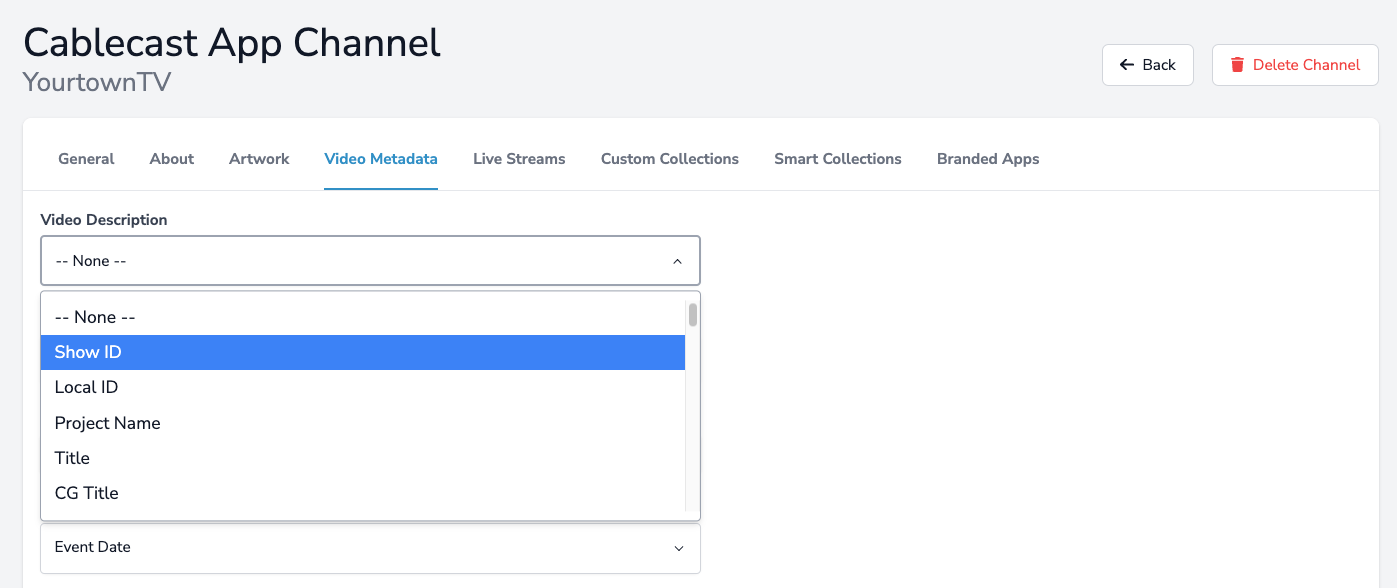
In Video Metadata, you can customize the details that display with each of your programs, based on fields you have populated in your Show Records in Cablecast. You can select which field to use as your Video Description, and add and customize up to three additional info fields.
Live Streams
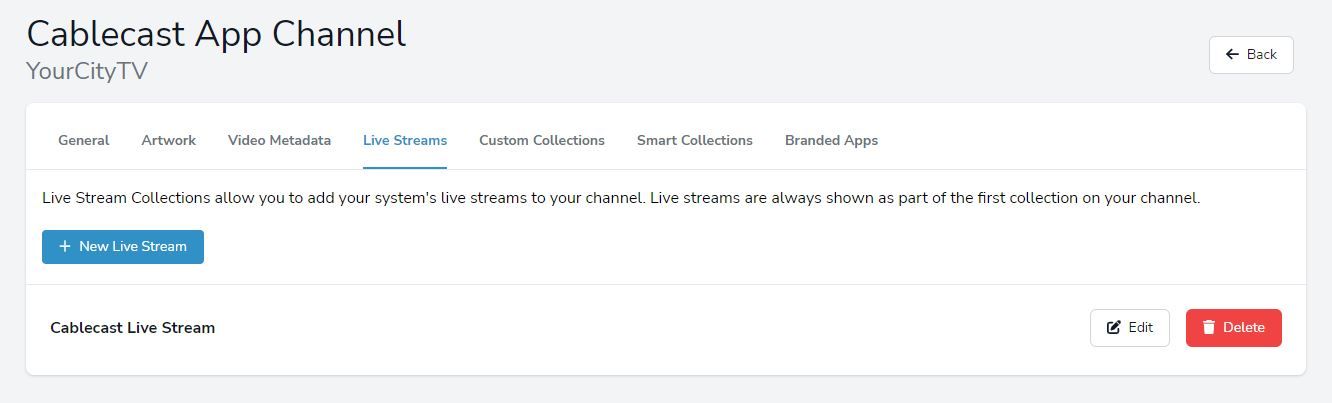
In Live Streams, you can choose which channel live streams will be available on your App Channel.
Note: If your facility has multiple Live Streams, you can add all of them or only the specific ones you want to include.
To add a live stream:
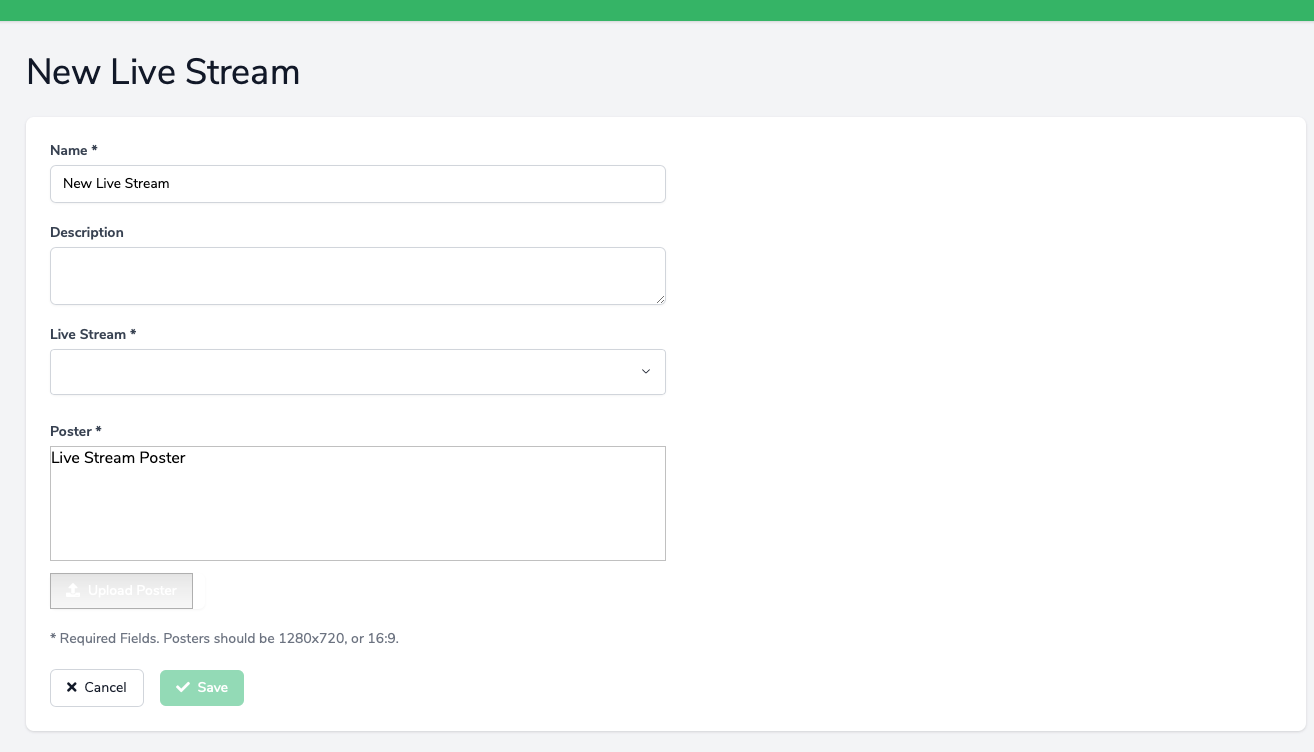
Select New Live Stream.
Enter a name and description for the stream.
Use the Live Stream dropdown to select the specific stream.
Upload a Poster image to represent the stream. Recommended image size: 1920×1080.
Select Save.
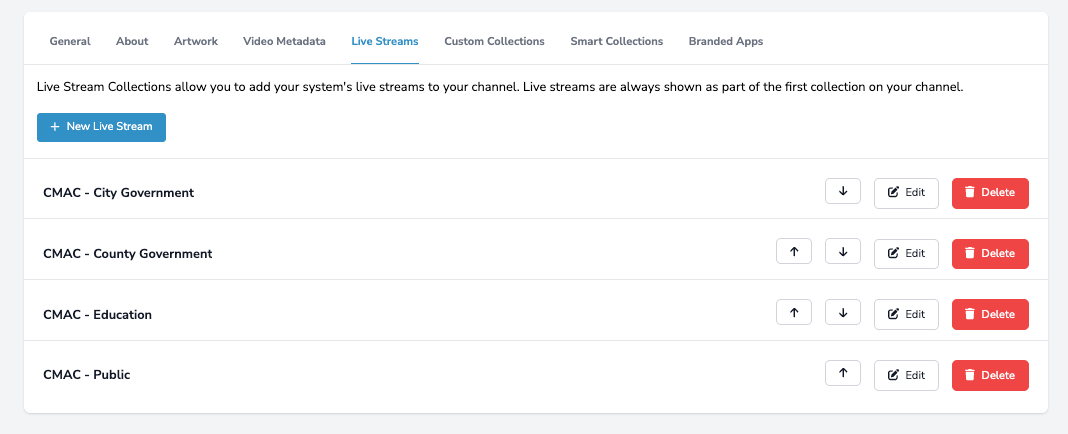
If you have multiple live streams, use the up and down arrows to the right of each stream name to adjust the display order.
Custom Collections
Custom Collections let you curate exactly which shows are available on your channel. They are powered by Show Search and Saved Searches in Cablecast, and their content updates automatically as search results change.
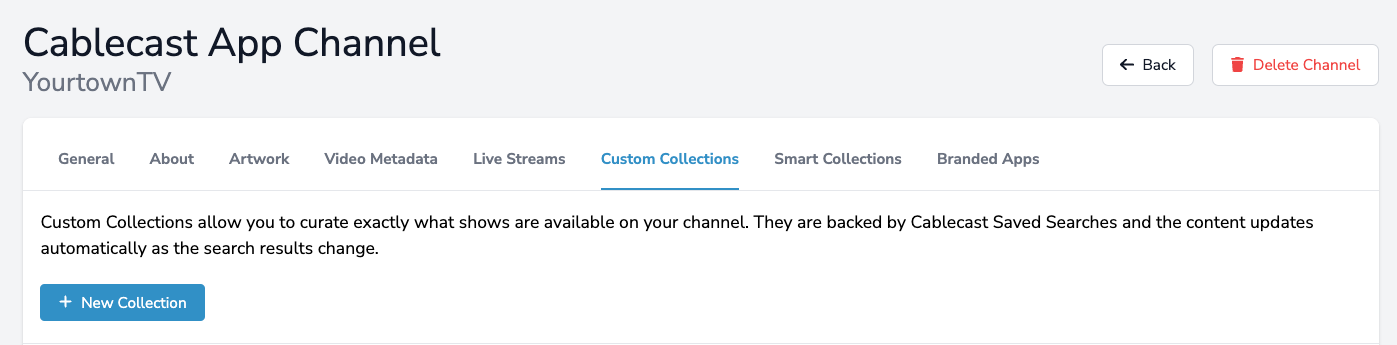
To add a new collection:
Select New Collection.
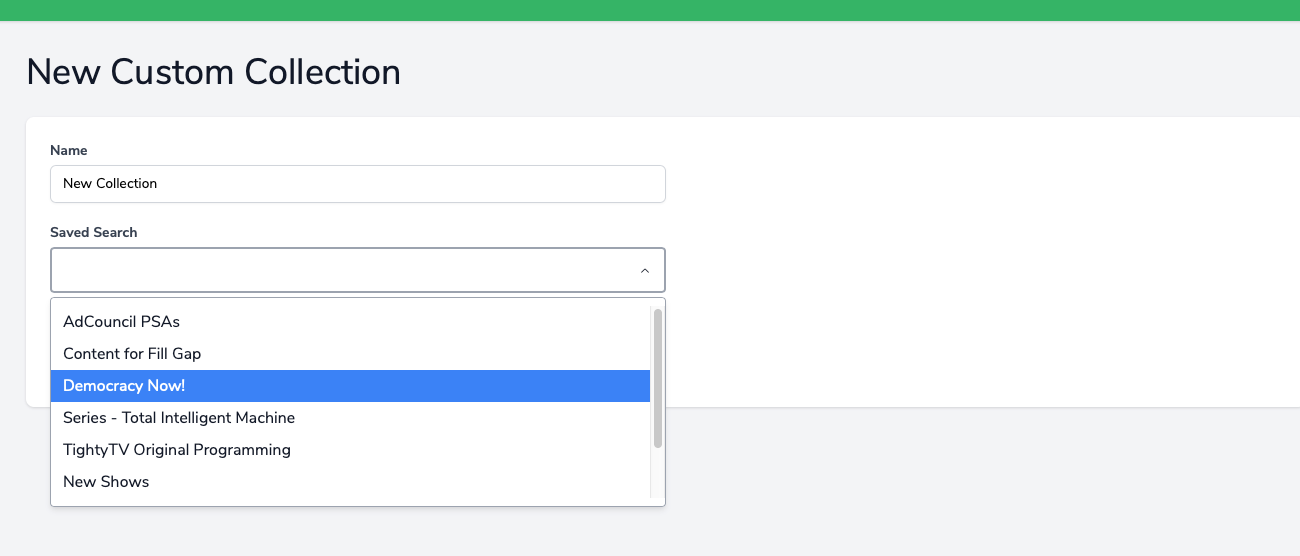
Enter a name for the collection.
Select the Saved Search you want to use. Note: Saved Searches must be added to your Internet Channel configuration before they will appear as options in this dropdown. To do this, go to Settings > Internet Settings > Internet Channels, edit your channel, and add the Saved Search as a gallery under the Galleries tab. If you don't want the gallery to appear on your Internet Channel's home page, leave the Display on Home Page checkbox unselected.
Select Save.
For more on creating Saved Searches for Custom Collections, see the video below.
Saved Searches and Custom Collections in the Cablecast OTT Apps
Smart Collections
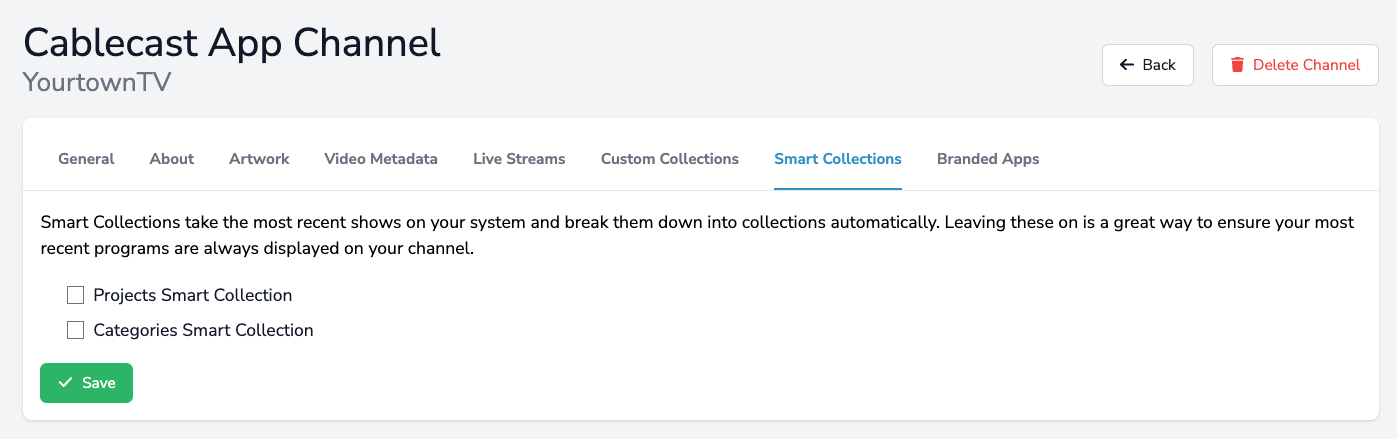
Smart Collections automatically organize your most recent shows into collections, so your newest content is always surfaced on your channel. You can choose to have Smart Collections broken down by Project or by Category.
Note
Smart Collections will only display the 200 most recent VODs.
Summary
If you have multiple channels, repeat these steps for each one. Once your channel is published, viewers can access your content on FireTV, iOS, Android, Apple TV, and Roku devices.
If you don't currently have Cablecast Cloud Services Apps and want to learn more, reach out to our sales team at sales@cablecast.tv.
