Workflows in Cablecast 7.5+
Workflows let you manage your playback files using automatic rules you set up in Cablecast.
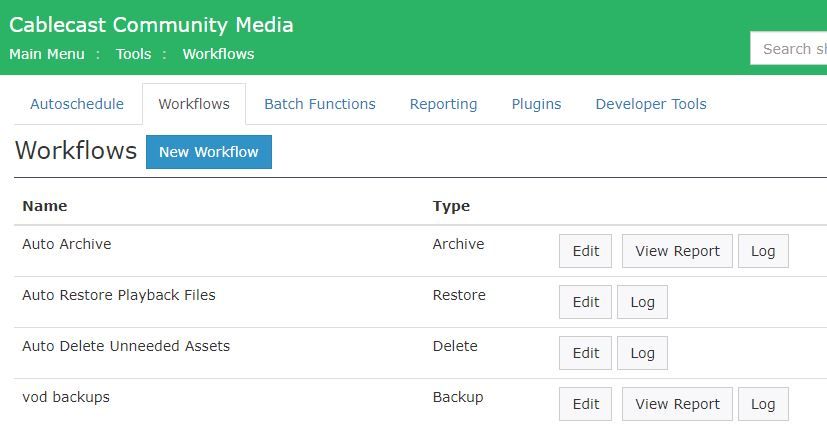
Workflow Types
Archive — Moves files to external storage, such as a NAS.
Backup — Creates a copy of files on a secondary File Store, such as a NAS.
Delete — Removes files from the primary File Store after a set amount of time.
Mirror — Creates exact copies of files, specifically for Shadowing systems.
Restore — Pulls files from a backup or archive location back to the video server when an associated Show Record is scheduled for playback again.
Unless otherwise noted, each workflow rule runs every 10 minutes. All Workflows require a Saved Search. The Saved Search tells Cablecast which programs the Workflow applies to.
Archive
Runs every 1–5 minutes
The Archive Workflow moves files from active Playback File Store(s) to a Backup or Archive Store using Saved Searches.
Shows set for Archive cannot be scheduled in the future. If they are, they will stay on the active Playback File Store until they have been off the schedule for a set number of days.
You can set how long to wait after a program's last air date before it gets archived.
Once the Workflow and Saved Search conditions are met, the system marks the original file for deletion after it moves to the Archive File Store.
This frees up space on the original File Store.
Controlling what gets archived with a custom field
If you have programs you don't want to archive, you can use a custom field to control which programs are included.
For example, say you bring in content from outside producers but don't need to keep all of it. You can create a custom field under Settings > Location Settings > Shows > Custom Fields — name it something like "Archive" and make it a List type with values like:
Archive
Do Not Archive
Set the right value in each Show Record. If you need to update many records at once, use bulk actions to apply the field in bulk.
Then create a Saved Search that finds programs marked "Archive." Use that search as the source for your Archiving Workflow. Only those programs will be archived — everything else is skipped.
Backup
Copies the file to a user-defined File Store location.
Does not delete the original file.
Delete
Shows set for deletion cannot be scheduled in the future. If they are, they will stay on the active Playback File Store until they have been off the schedule for the designated number of days.
When the Workflow conditions are first met, deletion is scheduled for seven (7) days later. This acts as a safety net.
If the file is added back to the schedule, the deletion is canceled, and the file is kept.
Mirror
The Mirror Workflow is ideal for systems with a Shadow server configuration. It makes an exact duplicate of files across File Stores.
Duplicates files across two servers
Keeps both stores in sync, including deletions
Backup vs Mirror Workflows
Mirror keeps both File Stores fully synchronized (including deleting files from the other store when one is deleted), while Backup only copies files and does not propagate deletions between stores.
Restore
The Restore Workflow copies playback files back to the video server when a Show Record is scheduled, if the file is on a backup or archive File Store. It works especially well with an Archive Workflow.
You can enable or disable the Restore Workflow independently, so you can turn it on only when you need it.
Delete
The Delete Workflow uses Saved Searches. When a program's air dates have passed, and it has no longer been in the schedule for the designated number of days, and it matches the Saved Search, Cablecast will schedule it for deletion. If the file is still in the schedule, Cablecast will not delete it.
Using Allowed Air Dates is the best way to control auto-deletion. You can also use a custom field to narrow down which programs are eligible.
Using Workflows
Workflows can be simple — like using a Saved Search to back up programs — or more complex, like automating your full archive and restore cycle to keep your server storage clear.
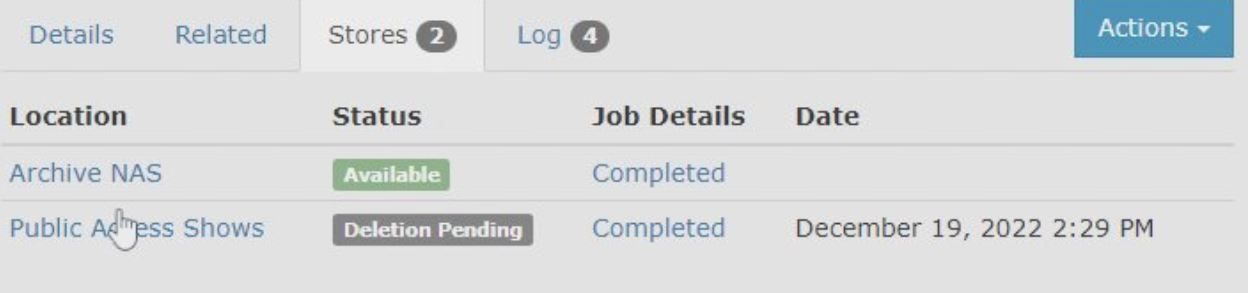
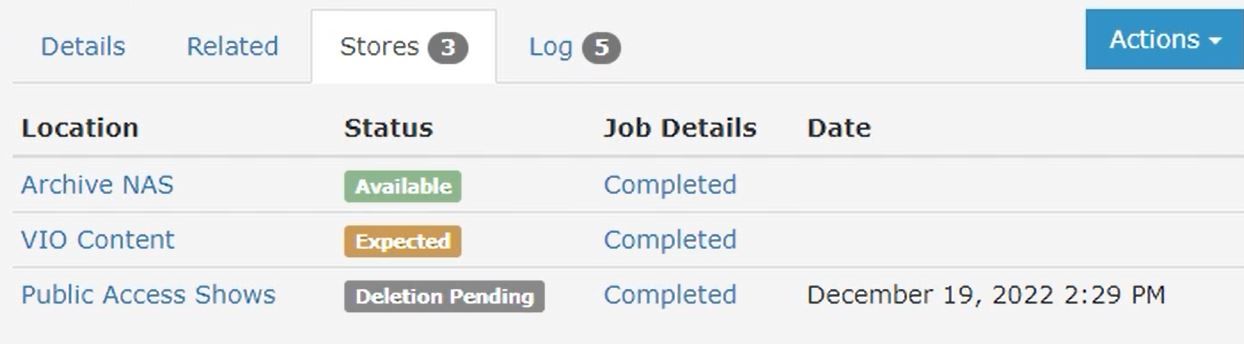
Mirror Workflows are a good fit for shadow server setups, where a primary and secondary server run at the same time. If the primary server goes down, the secondary keeps running the schedule. The Mirror Workflow makes sure any file on the primary server is also copied to the secondary File Store. You won't need to load programs to both servers by hand.
Systems running shadow systems, where a primary and a secondary server are in use. Allowing for if the primary server were ever to go down, the secondary server is running a mirror version of the schedule.
Creating a Workflow
Workflows are found under the Tools menu.

Click the New Workflow button at the top of the page to get started.
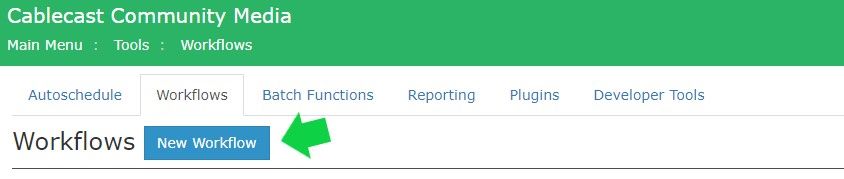
This opens the Editing Workflow panel, where you can name the Workflow and choose its type. The settings shown will depend on the type you select.


Example: Setting up an Archive Workflow

Name — Give the Workflow a clear name so it's easy to find later.
Type — Select Archive Playback Assets. This copies the file to your chosen File Store, then removes the original from the active Playback File Store once the Inactive Days in Schedule rule is met.
File Store — Choose where to send the archived files, such as a NAS File Store. See Smart Asset Management: File Stores for more information.
Show Search — Pick the Saved Search that defines which programs this Workflow applies to (e.g., "Council Meetings").
Inactive Days in Schedule — Set how many days a program must be off the schedule before the Workflow runs (e.g., 2 days).
Enabled — Check this box to turn the Workflow on. You can uncheck it to pause the rule at any time without deleting it.
View Reports and Logs
Each Workflow has a View Report and Log available. The information shown will vary by Workflow type.

To view logs for a Workflow:
Go to Tools > Workflows.
Find the Workflow you want to review and click Log.
The log shows which files were processed, when they were processed, and the Destination File Store.
To view a report for a Workflow:
Find the Workflow you want to review and click View Report.
The report shows how many items have been processed and which are in progress.
Click View All to see the full list of completed activities for that Workflow.
