Autopilot Settings and Email Notifications
Autopilot settings let you control how Autopilot behaves when it sends, including default send range, bump handling, and whether sends happen automatically on a schedule. You can also configure email notifications so your team receives a report after each Autopilot send.
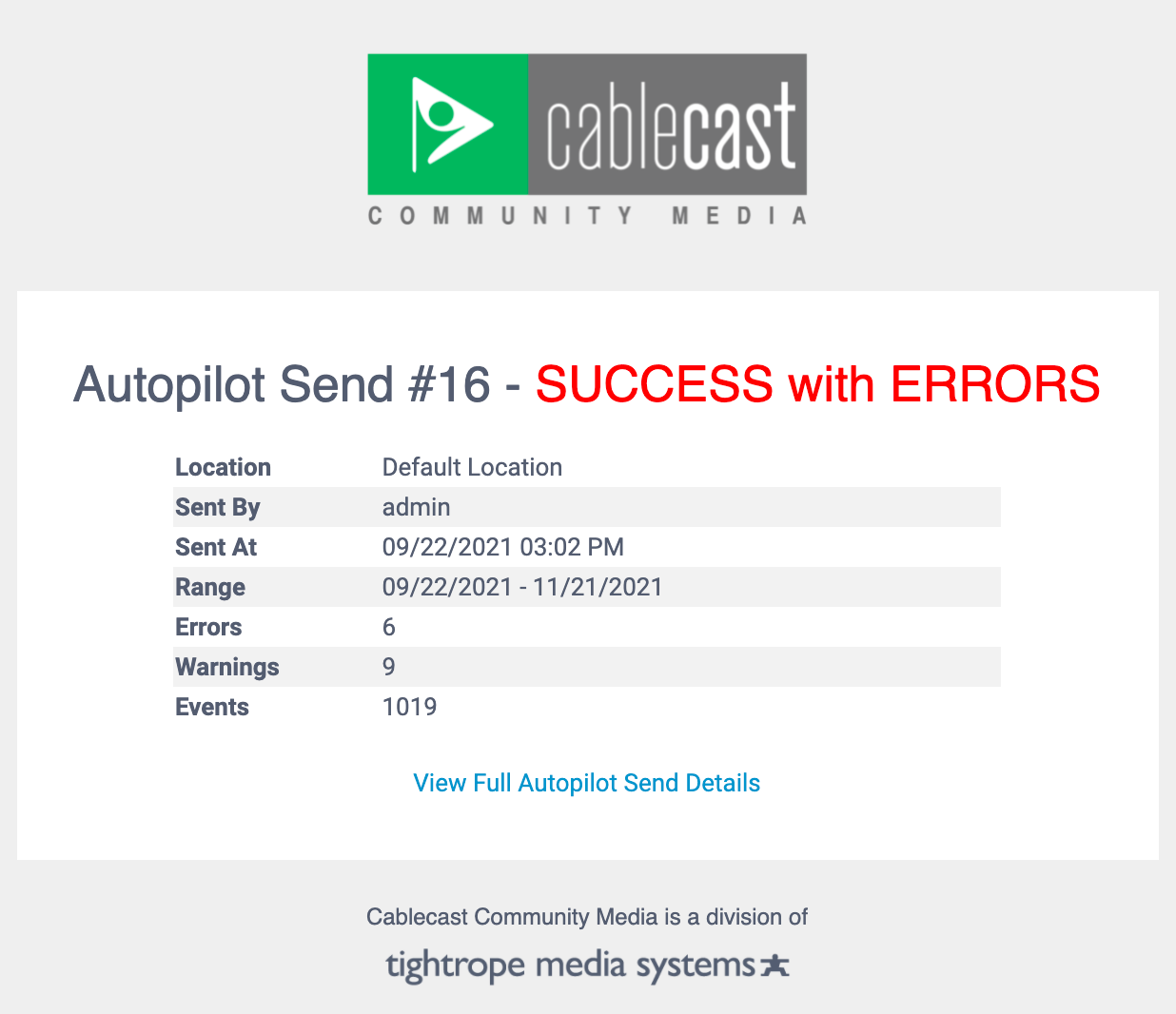
Configuring Autopilot Settings
To access Autopilot settings:
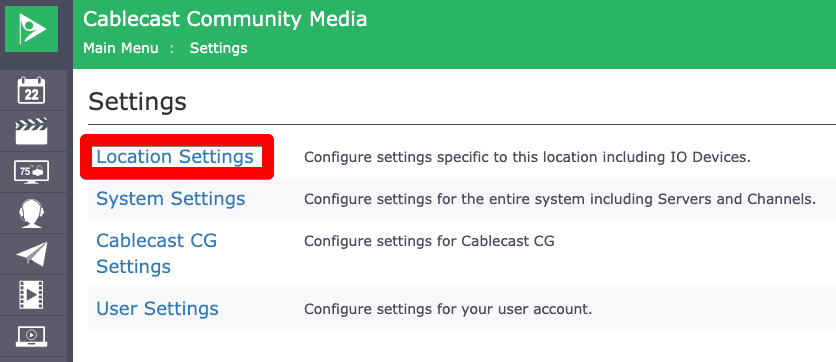
Go to Settings in the left-hand menu.

Select Location Settings.
Select the Autopilot tab, then select Configuration.

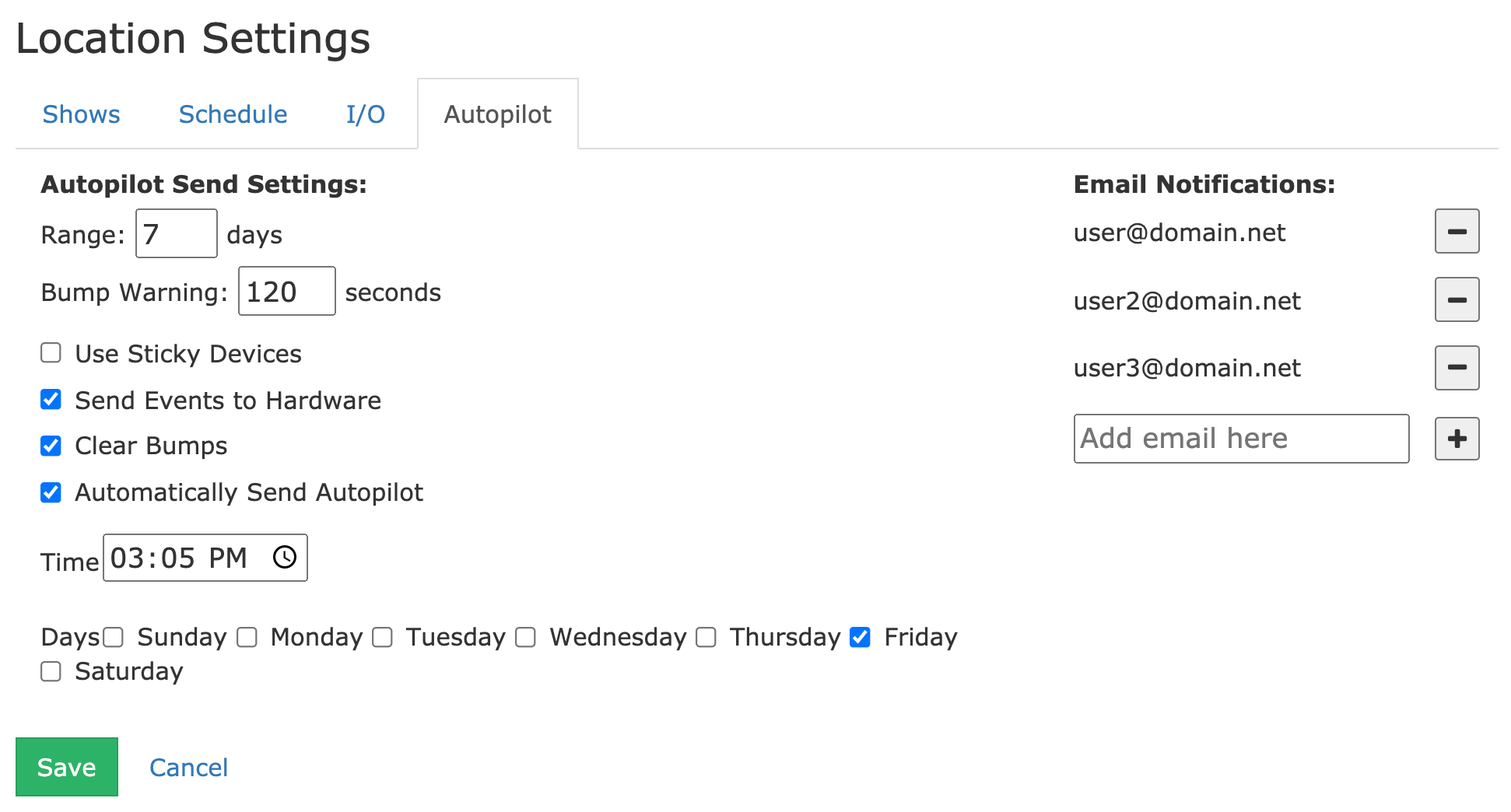
The following settings are available:
Setting | Details |
|---|---|
Range | The default range for the Autopilot send. This also applies to automatic sends. |
Bump Warning | Classifies bump messages as warnings when they exceed this threshold. Value is in seconds. |
Use Sticky Devices | Legacy feature that applies only to physical media devices (tapes/DVDs) in the same playback device from the last Autopilot send. Most stations do not need this option. |
Send Events to Hardware | When disabled, Autopilot creates the event table but does not send commands to your hardware. Useful for troubleshooting; not intended for regular use. |
Clear Bumps | Clears previous bumps when sending Autopilot. Leaving this on is recommended. |
Automatically Send Autopilot | Schedules Autopilot to send automatically at a set time on selected days of the week. |
Time | The time of day to send the automatic Autopilot. |
Days | The day(s) on which the automatic Autopilot sends occur. The send runs at the time defined above. |
Email Notifications | One or more email addresses to receive the Autopilot send report. See the note below for mail server requirements. |
Note: Email notifications require a mail server to be configured in FrontDoor. In FrontDoor, go to Server Setup > Mail Settings to set up your mail server before enabling this feature.
